The idea: the role decides what a person sees
Each employee has one role or more. A role is a set of permissions. The screen only hides buttons; the real check is done by the system itself on every request. So nobody can get past their permissions by any trick.
The system roles
| The role | Can mainly do |
|---|---|
| Owner | Everything: the subscription, settings, the team, Circle support access, prices, cash, reports |
| Manager | Orders, dispatch and cancelling after pickup, drivers, clients, prices, reports, employees and roles (below their level), the change log. Does not manage the subscription |
| Dispatcher | See the map and orders, create, edit, assign and cancel-before-pickup orders, see drivers and clients. Does not see prices or accounts |
| Accountant | See clients and prices, clients’ balances and recording their payments, drivers’ pay and paying them, reports and export, the wallet and invoices of Circle and paying them |
| Support | See the map and orders, create orders for clients, and see clients. Does not see prices |
The scope of a permission
When you give a role you choose its scope: “Everything”, “Own only”, “Team” or “Branch”. “Own only” means they see only what they created. But driver cash, clients’ balances and reports show only to those whose scope is “Everything”.
Adding an employee
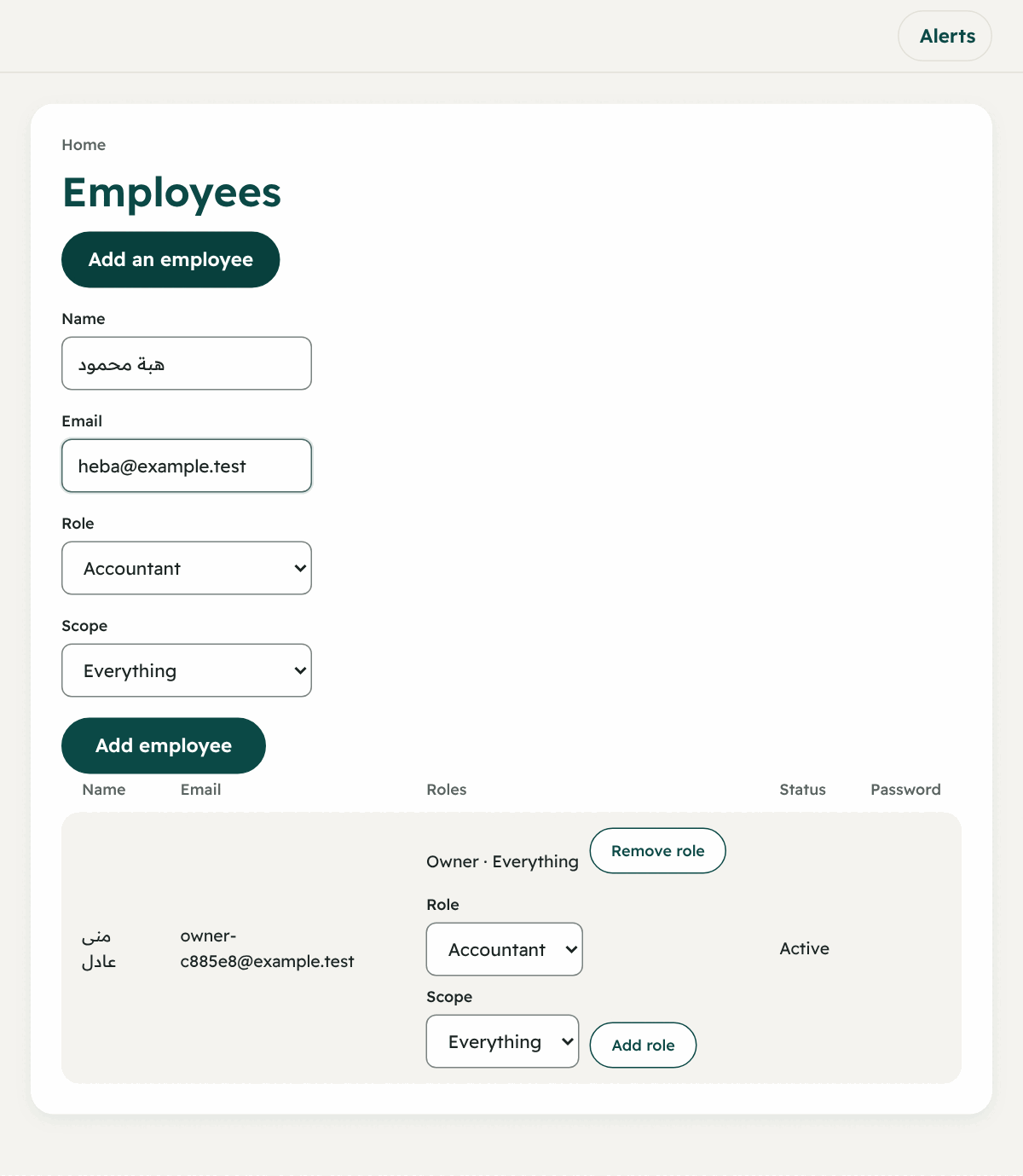
- From the menu → “Employees and roles” (the “People” group). This page is for whoever may manage employees.
- Under “Add an employee” type the name and the email.
- Press “Add employee”.
- A temporary password shows, only once. Copy it and give it to the employee.
- The employee signs in with the email and the temporary password, the screen “Choose a new password” shows, and they choose their own.
Giving the role
On the employee’s row:
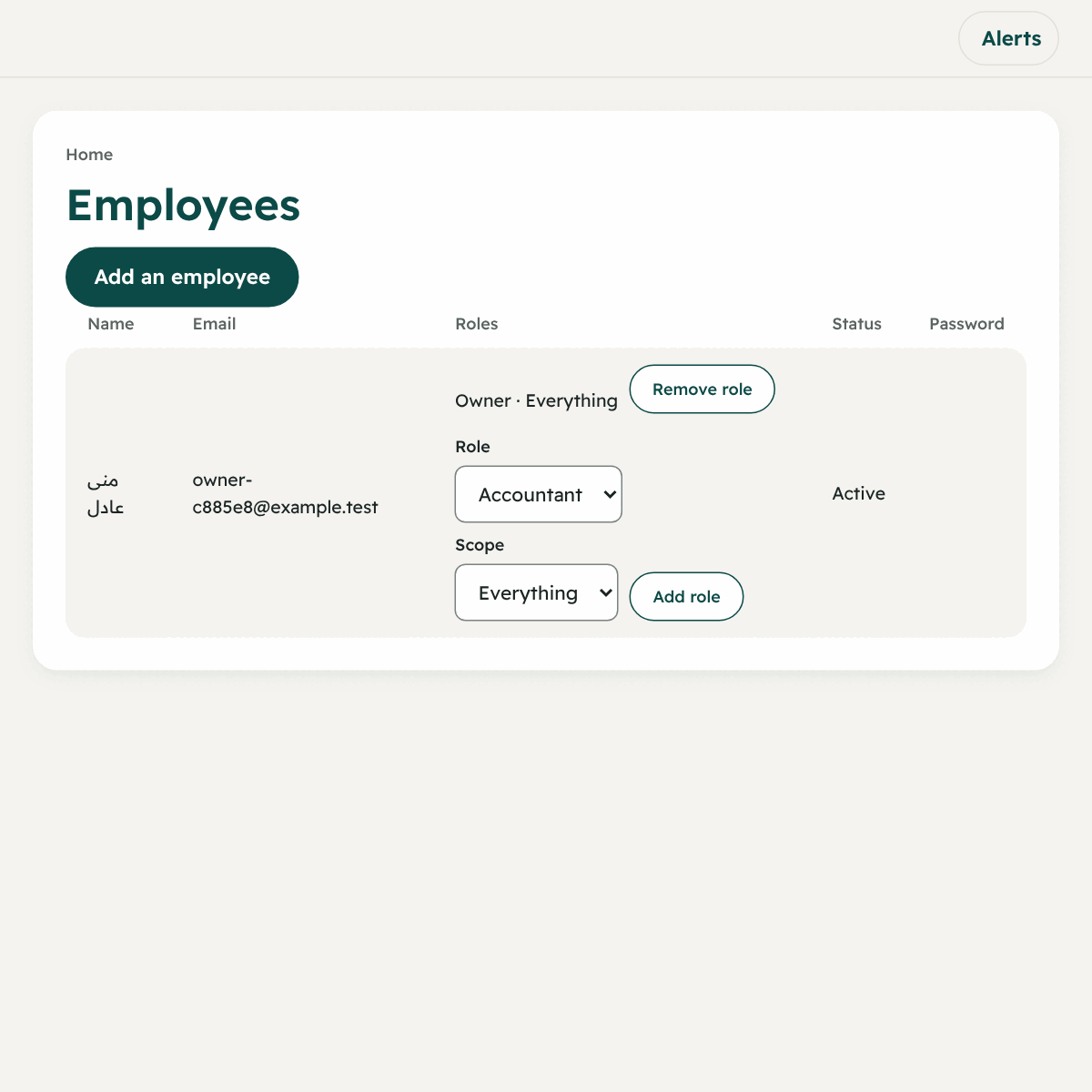
- Choose the role and the scope.
- Press “Add role”.
- To take a role away press “Remove role”.
The safeguards:
- You cannot give more access than you hold, nor change the roles of someone with more access than you.
- The last owner cannot be removed from the company.
- A person cannot be given a role they already hold.
Your company’s own roles
If the “Editing roles” feature is on for your company, you have the page “Roles and permissions”:
- Create a new role “empty” or start from a copy of an existing role (a copy takes only the permissions you hold).
- Add or remove permissions by their names, such as: “See orders”, “Create orders”, “Assign or change the driver”, “Cancel an order after pickup”, “Change prices”...
- A role can be renamed. And it can be deleted only when nobody holds it.
- Permissions you do not hold show marked “You do not hold this”, and you cannot add or remove them.
Every change to roles is recorded in the change log.
Practical tips for giving roles
- Owner: keep the number of owners small, and turn on two-step sign-in for them.
- Dispatcher: for whoever takes phone orders, without seeing your financial numbers.
- Accountant: for whoever follows the money only.
- Do not use one account for several people: so the change log knows who did what.
- When an employee leaves: take away all their roles with “Remove role”, so they become “No role” and hold no permission. To end the account completely open a ticket from “Support from Circle”.