Your data is protected
- Each company’s data is fully separate from every other’s. The database itself stops any company from seeing another’s data.
- Drivers and clients see only what is theirs.
- Amounts show only to those with their permission.
- Every important change is recorded (unit 11).
- Turn on two-step sign-in for the owner at least (unit 2).
Asking Circle for support
1) A ticket inside the console
From “Support from Circle” (the feature “Support tickets”):
- Under “New ticket” write the “Subject” and the “Message” → “Send”.
- Follow its state in the company’s tickets: “Waiting for Circle”, “Circle answered” or “Closed”. You write “Your reply” in the same ticket.
- “Close the ticket” when done. A closed ticket takes no more messages, so open a new ticket for anything else.
Everyone in the company with the permission sees the company’s tickets. If the feature is not on use the “Contact us” page on the website.
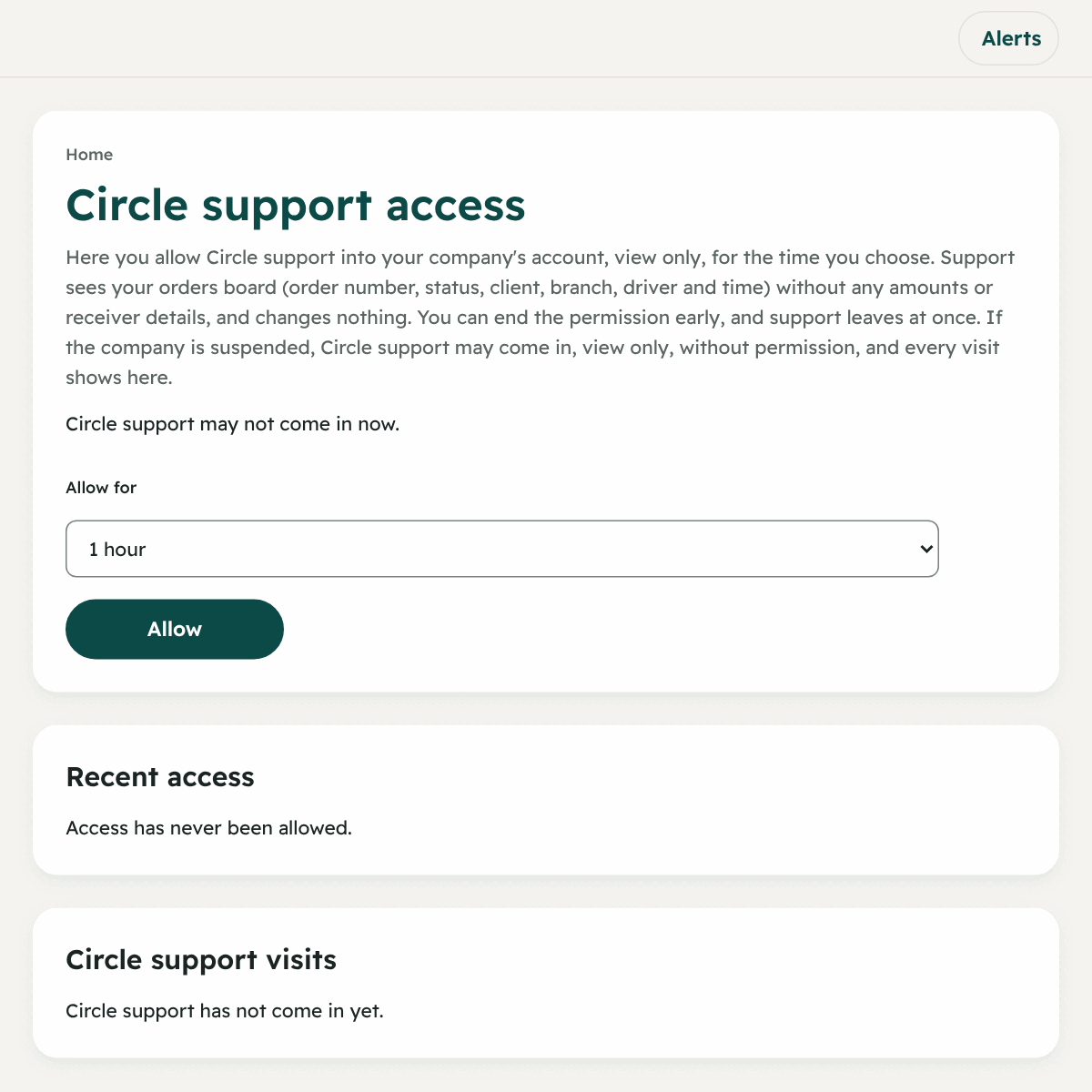
2) Letting Circle’s support into your account
Sometimes support needs to see what you see to help you. They never enter your account without your permission (the owner only):
- “Circle support access” (the “Company” group).
- Choose “Allow for”: 1 hour, 4 hours or 24 hours → “Allow”.
- During that time support looks only, and you see: “Circle support is in your account now, to look only”.
- You can press “End it now” at any time.
- Under “Circle support visits” you see every visit: who came in and when.
If Circle suspends your company’s account
Circle can suspend a company’s account with a reason it tells the owner. Before the suspension the owner and manager see a bar: “Circle will suspend your company’s account at …” with the reason. When it starts:
- Nobody from the employees, drivers or clients can sign in.
- The sign-in screen says the account is suspended, and the owner and manager see the reason.
- Contact Circle to reactivate it.
The commonest problems and their fixes
| The problem | The likely cause | The fix |
|---|---|---|
| I cannot find a page in the menu | You lack its permission, or the feature is not on for your company | Ask the owner about your role (unit 5), or see the extra features (unit 3) |
| No driver shows in the assignment list | They did not check in today, are suspended, or there is no active driver | Check “Drivers” and the column “Today” |
| The driver says no orders reach them | They did not check in, location is off, or the “attendance place” rule refuses them | Units 6 and 12 |
| I cannot create an order: there is no price | The client has no price and there is no default | Unit 8 |
| New orders have stopped | The trial ended, an invoice is unpaid, or the balance is not enough | Unit 4 |
| A new client cannot sign in | They are still “Waiting for approval” | Accept them from “Clients” |
| A mobile number is already used | The number has an account inside your company (employee, driver or client) | Find the old account or use another number |
| An employee, driver or client forgot their password | — | “New temporary password” from the person’s row |
| Times look wrong by an hour or more | The company’s “Time zone” is not set | “Settings” → “The company’s time zone” → “Save the time zone” |
| The map shows no driver | Their position did not arrive in the last 24 hours, or they are off shift | Make sure they checked in and turned on their phone’s location |
| I pressed something and nothing happened | The page is old | Refresh the page and try again |