Where do orders come from?
- From the client’s app: the restaurant sends the order itself, and it shows with you at once.
- From the dispatcher: the restaurant phones, and the dispatcher enters the order from the console. (This is what we explain now.)
Creating a phone order
From “New order” (the “Orders” group):
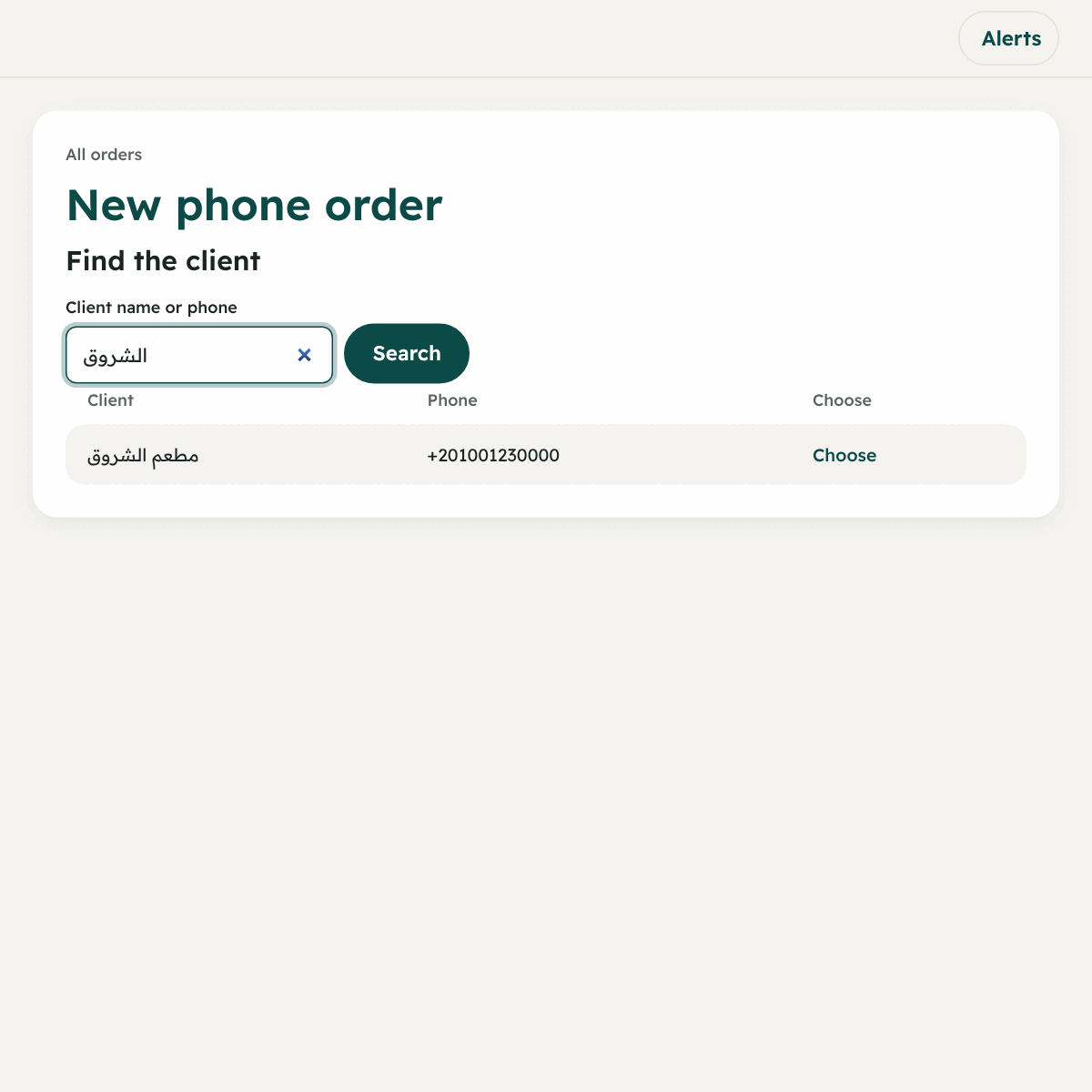
- Find the client: type their name or number → “Search” → “Choose”. (Only active clients show. One who signed up with a code and was not accepted does not show, and a suspended one cannot have orders.)
- Pickup: the “main branch”, or choose another branch, or write “This time picked up from” a different address.
- Drop-off:
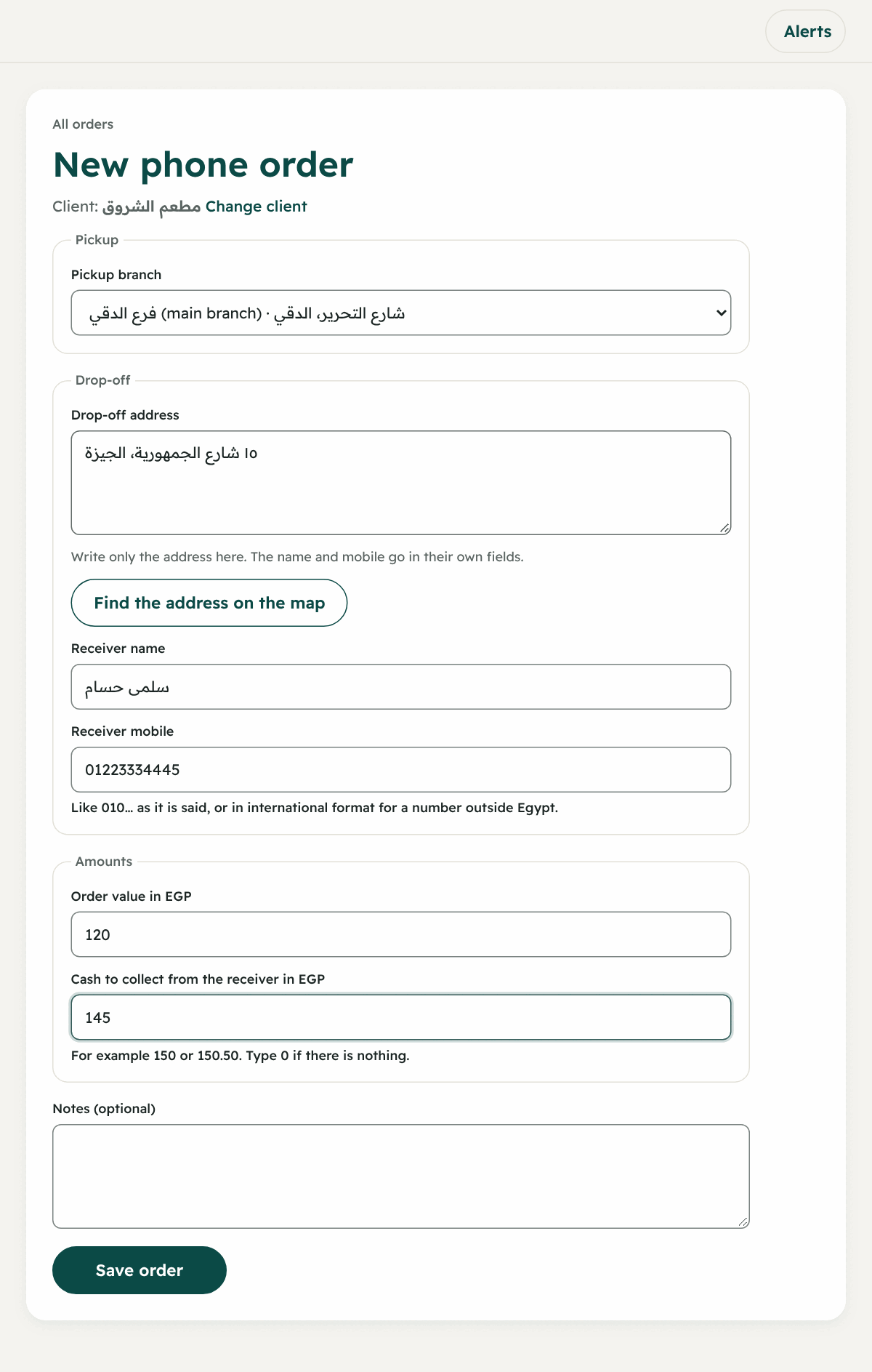
- Drop-off address: type the address only (without a name or phone number).
- Press “Find the address on the map” and choose the right place from the suggestions. If you do not find it press “Pin the place on the map” and drag the marker to the place. This point helps the driver arrive exactly.
- Area: usually leave it “From the address” (unit 8).
- The receiver: the name and mobile number (the driver calls it).
- Amounts:
- Order value in EGP.
- Cash to collect from the receiver in EGP: what the driver will take in cash at delivery. Type 0 if it is already paid.
- Notes for the driver (optional).
- Press “Save order”. “Saved order …” shows.
Assigning an order to a driver
You see only drivers who checked in today and are not suspended. There are three places to assign:
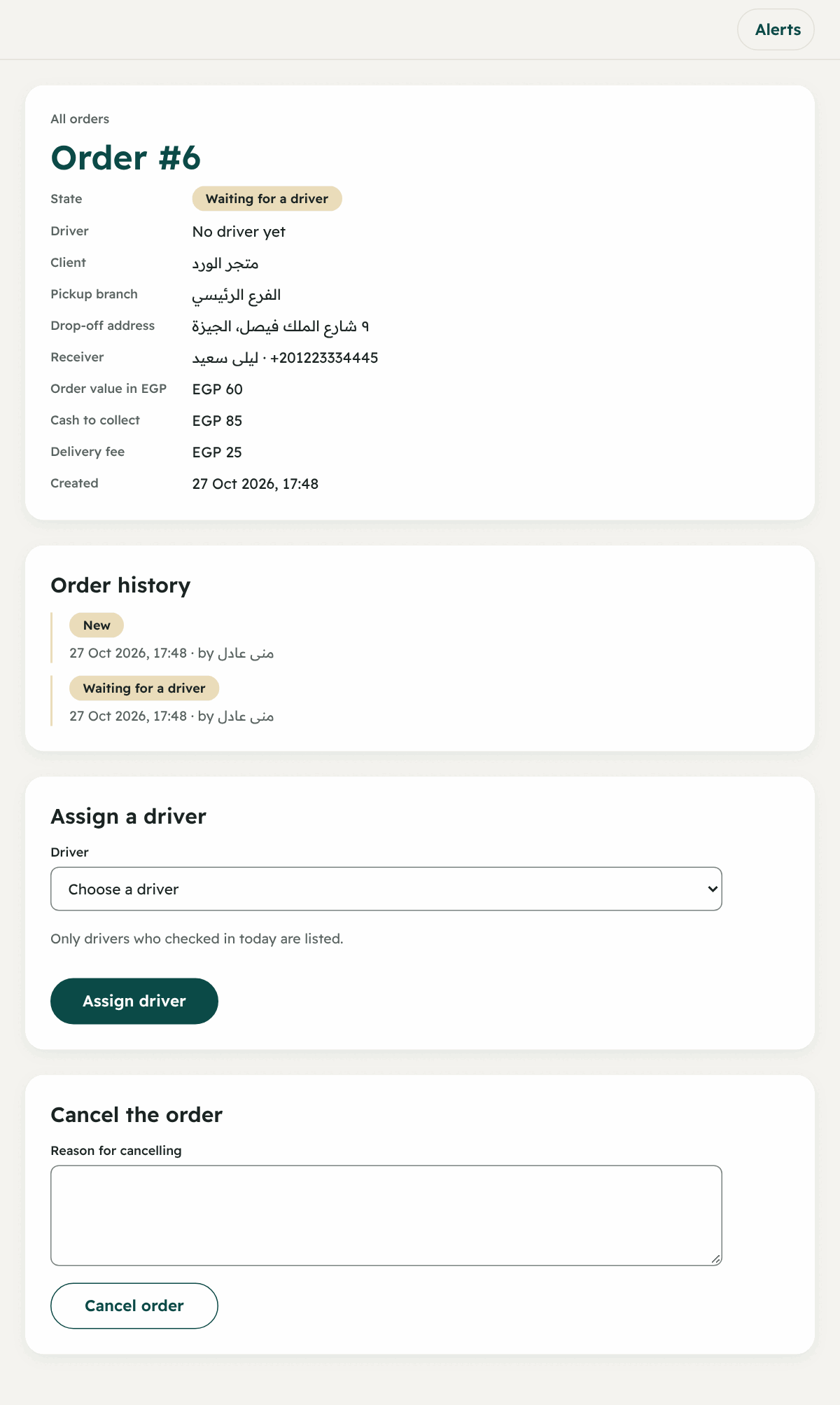
- From the order’s page: “Assign a driver” → choose the driver (beside their name you see how many “active orders” they have) → “Assign driver”.
- From the live orders board: the button “Assign a driver” on the order’s card in the “New” column.
- From the live map: “Show orders on the map” → “Choose a driver”. You see free drivers first, then the nearest to the pickup place (the distance is in a straight line, not by road) → “Assign”.
After assigning, the order shows in the driver’s app as “New order for you”, and they accept or reject (and they get a phone notification if the feature “Phone notifications” is on for your company). If you find no driver in the list check: did they check in? Are they suspended?
Changing the driver or taking the order back
- “Change the driver” to another who checked in.
- “Take the order back from the driver” (write the reason) → “Take back”: the order goes back to “Waiting for a driver”.
- A driver’s rejection puts the order back in the same state too.
The live orders board
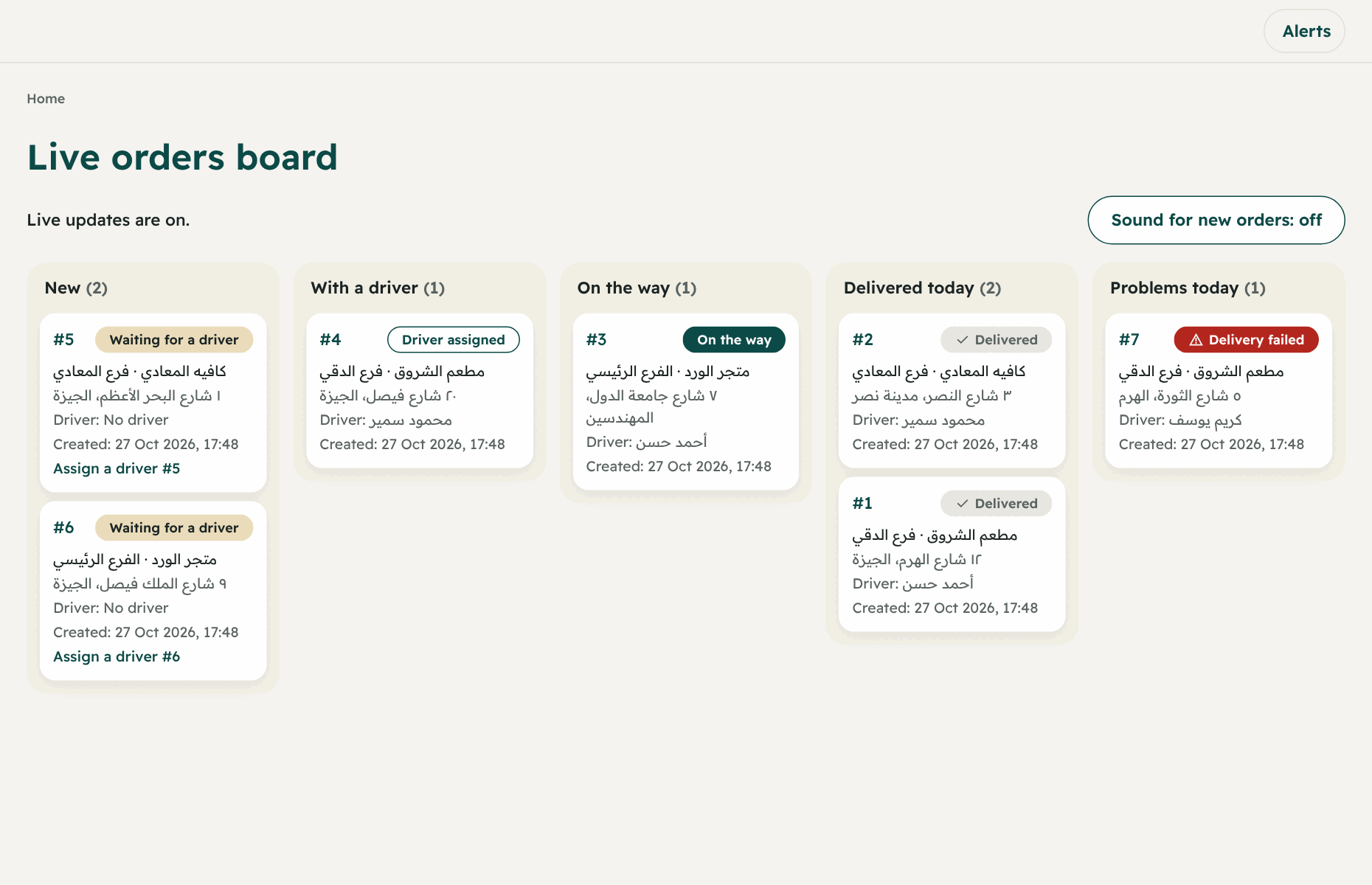
“Live orders board” is your main screen. Five columns:
| The column | What it means |
|---|---|
| New | Orders waiting for a driver |
| With a driver | Assigned to a driver (accepted or not yet) and not picked up |
| On the way | The driver picked them up |
| Delivered today | Finished today |
| Problems today | “Delivery failed” today. (Cancelled orders do not show on the board; find them on the “Orders” page) |
- The board updates by itself (live updates). If it drops it retries and refreshes every minute.
- “Sound for new orders”: you can turn it on or off.
- The first 500 orders show. For the rest open the “Orders” page, which has “Show by state”.
- “Today” starts by your company’s time zone (set in “Settings” → “Time zone”).
The order’s page
Press “Open order”. You find: the state, client, branch, receiver, amounts, delivery fee and driver, and the “Order history” with every step, who did it and when. You also see:
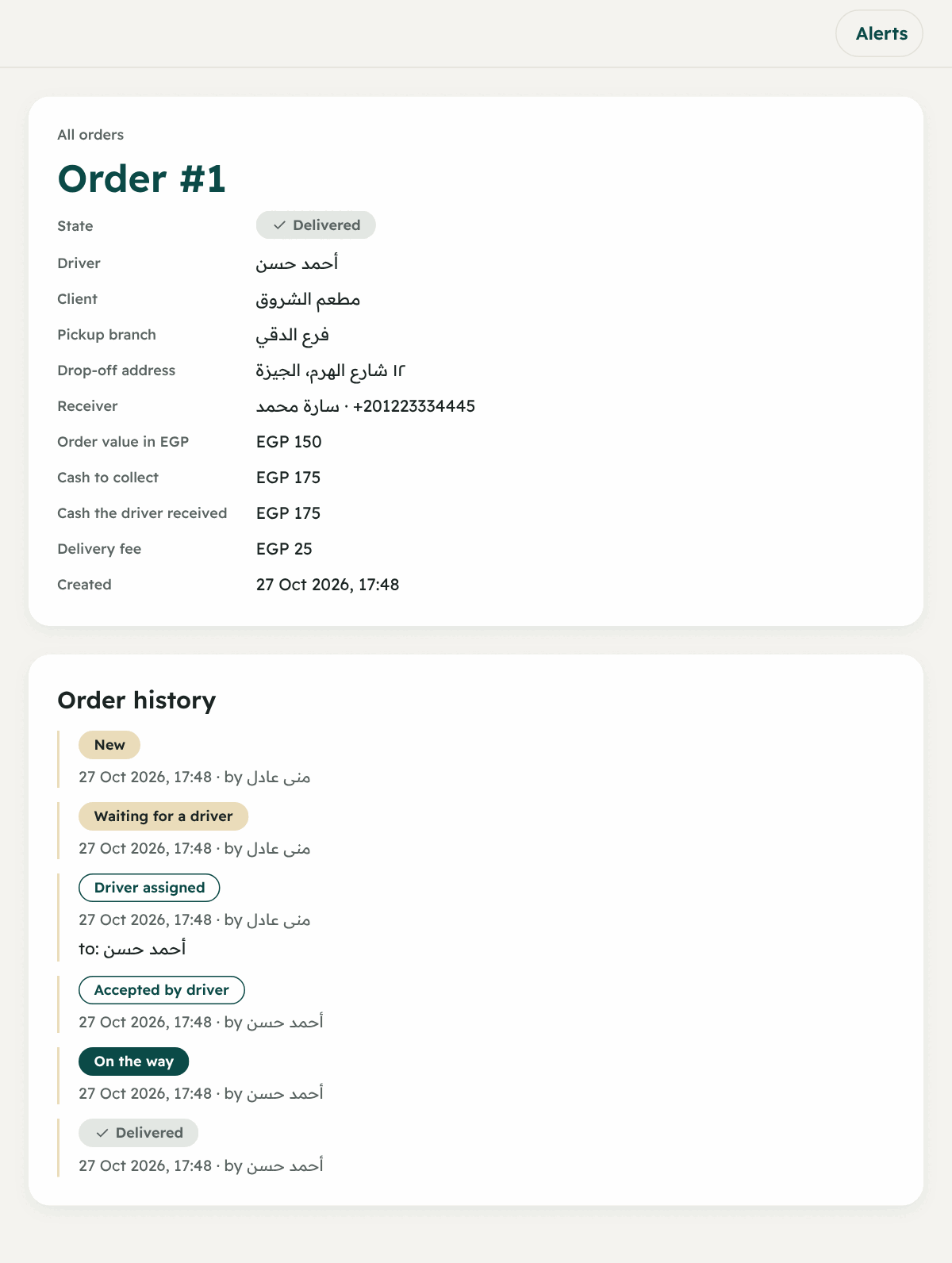
- “Cash the driver received”, and if it differs from what was due: “Cash differs” with “Why it differs (from the driver)”.
- “Automatic dispatch” and “The driver did not answer in time” if the system assigned it.
Cancelling
| The case | Who cancels | How |
|---|---|---|
| Before the driver picks it up | The dispatcher and whoever may cancel | “Cancel the order” + a reason |
| After pickup (the order is with the driver) | The owner and manager only | “Cancel after pickup” + a reason. It is recorded in the change log under your name with the reason |
- The dispatcher cannot cancel after pickup, so they ask the manager or owner.
- The client can cancel their order from their app only before a driver takes it.
- In the wallet: cancelling before pickup refunds its price, and after pickup it stays charged.
Automatic dispatch (an optional feature)
Instead of the dispatcher assigning, the system assigns. From “Settings” → “Automatic dispatch” → “Turn automatic dispatch on”, and “Seconds a driver has to accept” (30 to 600) → “Save automatic dispatch”.
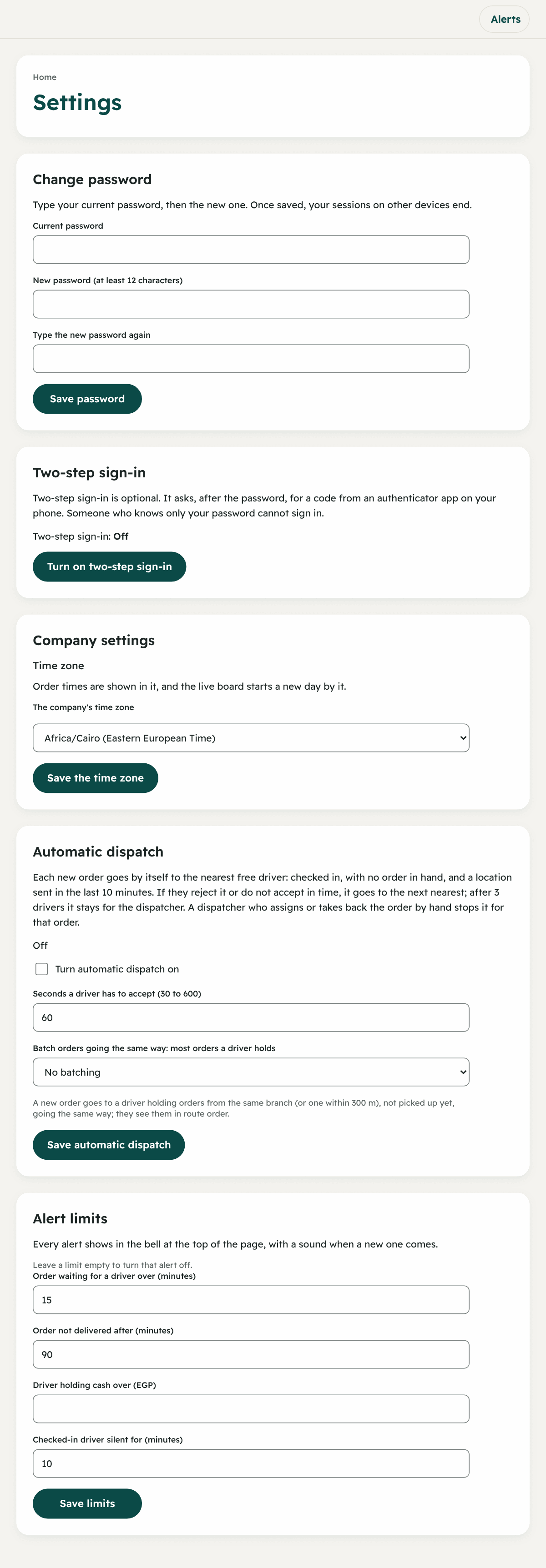
- Each new order goes to the nearest free driver: checked in, with no order in hand, and a location sent in the last 10 minutes.
- If they reject or do not accept in time, it goes to the next nearest.
- After 3 drivers the order stays for the dispatcher.
- If the dispatcher assigns or takes back the order by hand, automatic dispatch stops for that order.
Batching orders going the same way (an optional feature)
In “Settings” set most orders a driver holds (2 to 5). A new order goes to a driver who holds orders from the same branch (or one within 300 metres), not picked up yet, and whose drop-offs go the same way. They show to the driver in route order.