Registering a new driver
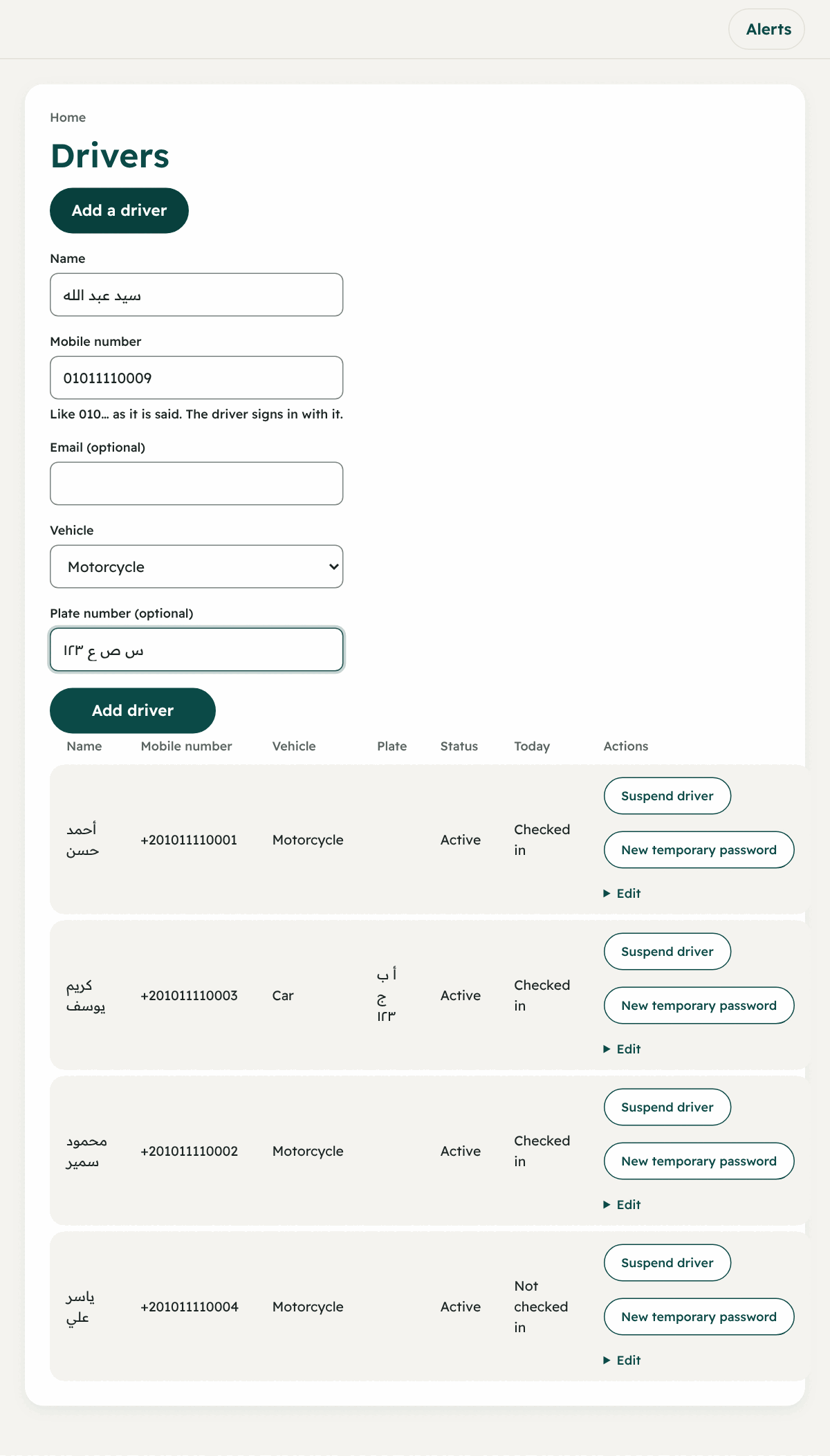
- From the menu → “Drivers” (the “People” group).
- Press the button “Add a driver” at the top of the page.
- Fill in:
- Name.
- Mobile number: 11 digits starting with 01, like
01001234567. The driver signs in to the app with this number. - Email (optional). Useful if the driver wants to recover the password alone.
- Vehicle: motorcycle, bicycle, car or van.
- Plate number (optional).
- Press “Add driver”.
- The “Temporary password” shows only once. Hand it to the driver yourself or in a safe way.
How many drivers can I register?
The number of your drivers is not limited technically, but your package has a limit, and what is above it is charged at the extra-driver price (unit 3). In the wallet the number of drivers has no bearing on the price.
Handing the app to the driver
- Ask the driver to open the Circle Fleet website on their phone, and in the “The apps” section press “Download for Android” under Fleet Agent: the driver app. (iPhone, Google Play and the App Store say “coming soon”.)
- The first time, the phone is allowed to install apps from the browser when it asks.
- They open the app, type their mobile number and the temporary password, then “Sign in”.
- The screen “Choose a new password” shows: they type the temporary one, then their own (at least 12 characters).
- After that they sign in with their own. (The app’s details are in unit 12, written for the driver.)
Checking in: the base of receiving orders
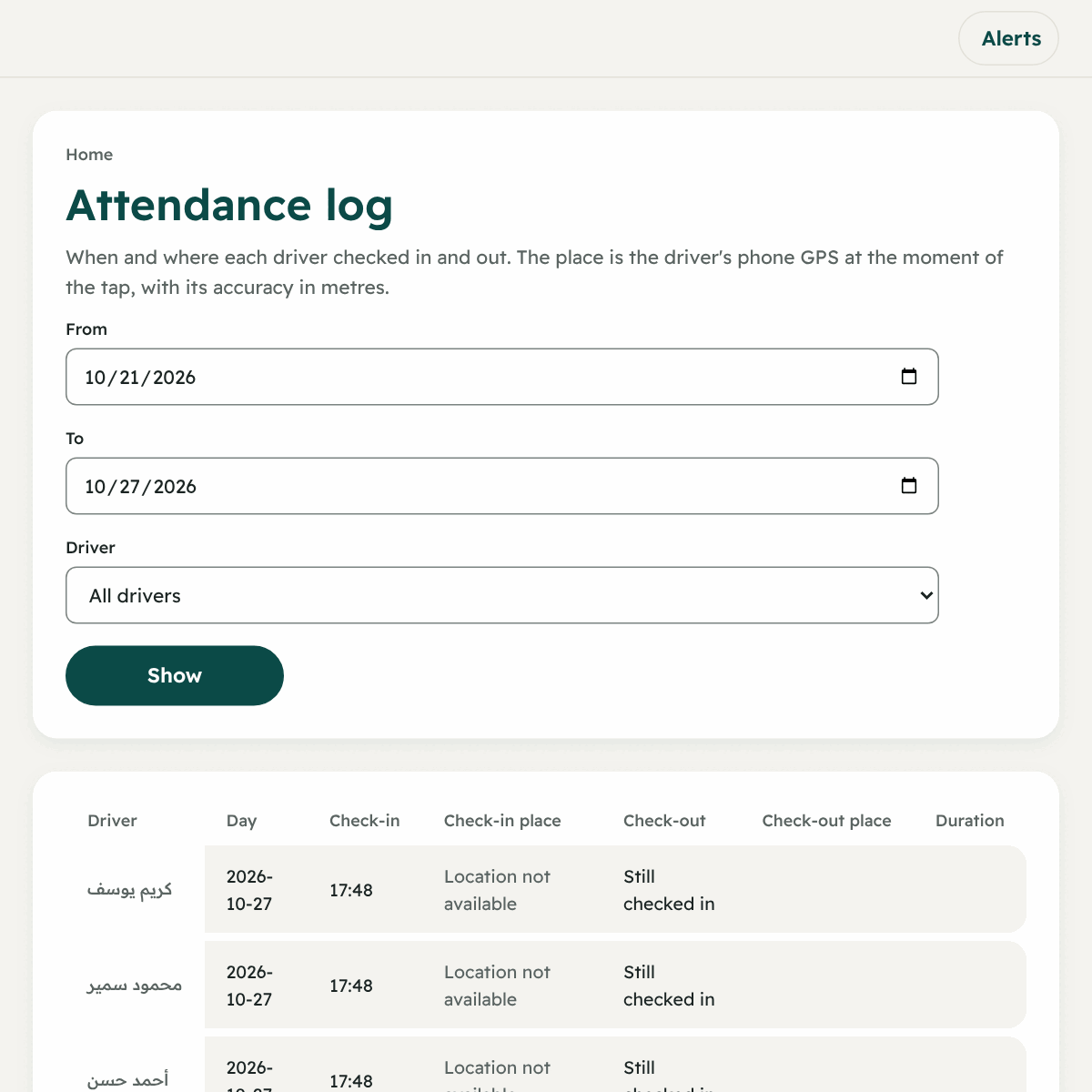
- A driver receives orders only after checking in from the app with the button “Check in and start shift”.
- On the “Drivers” page the column “Today” tells you: “Checked in” or “Not checked in”.
- When you assign an order you see only the drivers who checked in today.
- A driver may check out and check in again the same day (a break), and the day counts once.
- Someone who forgot to check out: their check-in ends by itself at midnight in your company’s time zone, and the day still counts as worked.
- Their location is sent to your company only during the shift, and stops at check-out.
Check-in at set places (an optional feature)
If you want a driver to check in only from your branch or yard, turn the feature on and then, from “Attendance places”:
- “Add a place”: type the name, the address to find it on the map, choose the point on the map, and the radius in metres (20 to 5000). A phone’s GPS is usually accurate to 10 to 50 metres, so a radius of 100 to 300 metres suits a branch.
- Under “Places of each driver” choose the places each driver may check in from. A driver with no place chosen may check in from any of your company’s places.
- Press “Turn the rule on”. (At least one place is needed.)
After it is on:
- A check-in from outside a place is refused, and the app tells the driver how far they are.
- A check-in with the phone’s location off is refused too.
- Check-out is allowed from anywhere, always.
Managing a driver
On each driver’s row in “Drivers”:
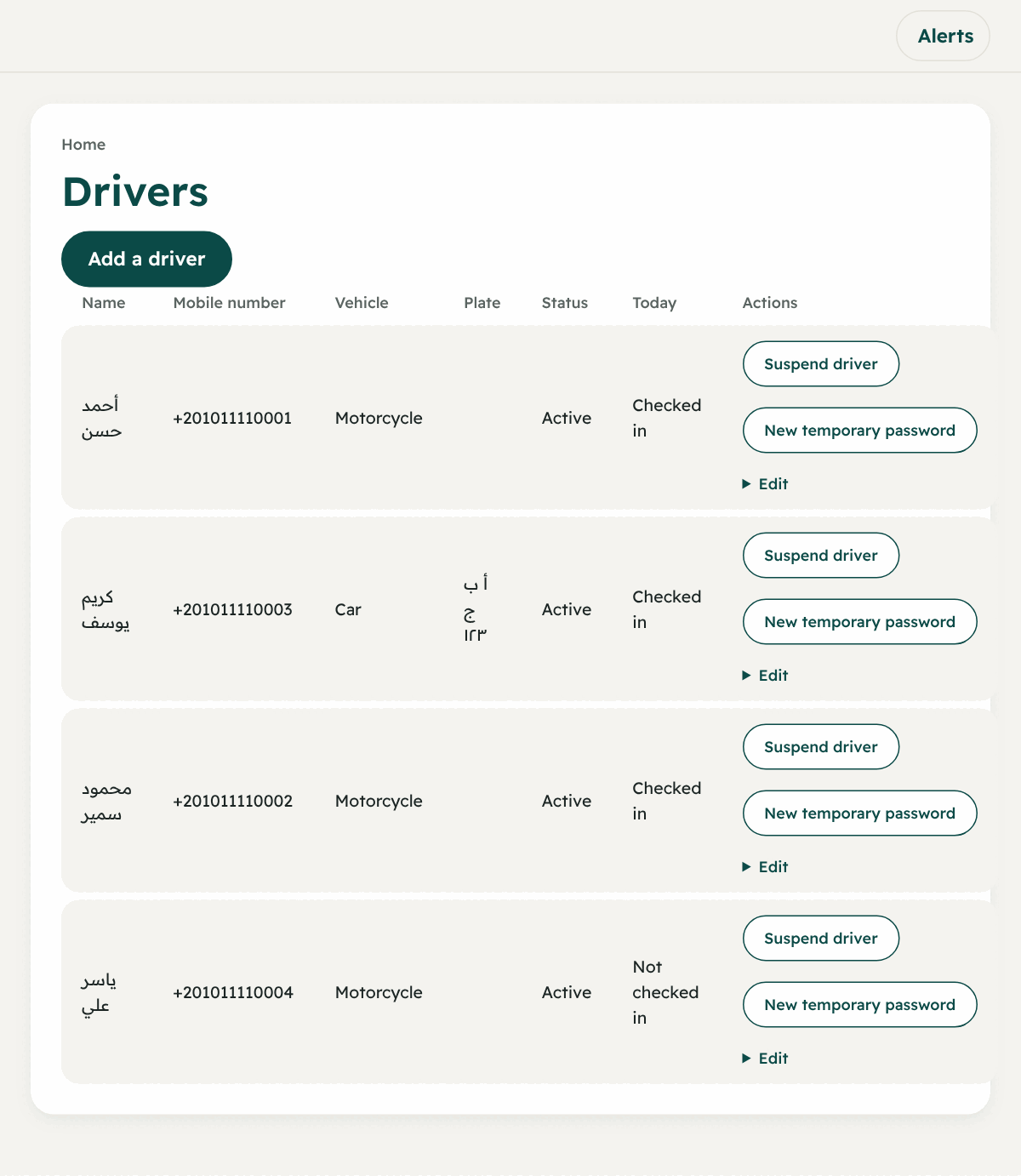
| The button | What it does |
|---|---|
| Edit | Change the name, number, vehicle or plate. Changing the number changes their sign-in number |
| Suspend driver | Signs the driver out of all their devices at once and they receive no orders. You can bring them back with “Reactivate driver” |
| New temporary password | If they forgot it or it was lost. It shows once and ends their sessions, and they choose a new one when they sign in |
Following drivers moment by moment: the live map
Open “Live map” (the “Orders” group). You see each driver’s last position, and positions move as soon as they arrive (with live updates). Each driver’s state:
| The state | Its meaning |
|---|---|
| Free | Their position arrives and they have no order |
| On a trip | They have an order not yet delivered |
| No position for more than 5 minutes | Offline, or they closed the app |
With “Show orders on the map” you see the orders under way: the filled square is the pickup place, and the hollow marker is the drop-off place. And from the map itself you press “Choose a driver” and assign (unit 9).