Before you start
Get these ready:
- The name of your delivery company, as you want it shown in the system.
- Your name (the account holder, who will be the “Owner”).
- Your email: you always sign in with it, and the confirmation email goes to it. Make sure you can read it.
- Your mobile number, like
01001234567. - A password of at least 12 characters that only you know.
The sign-up steps
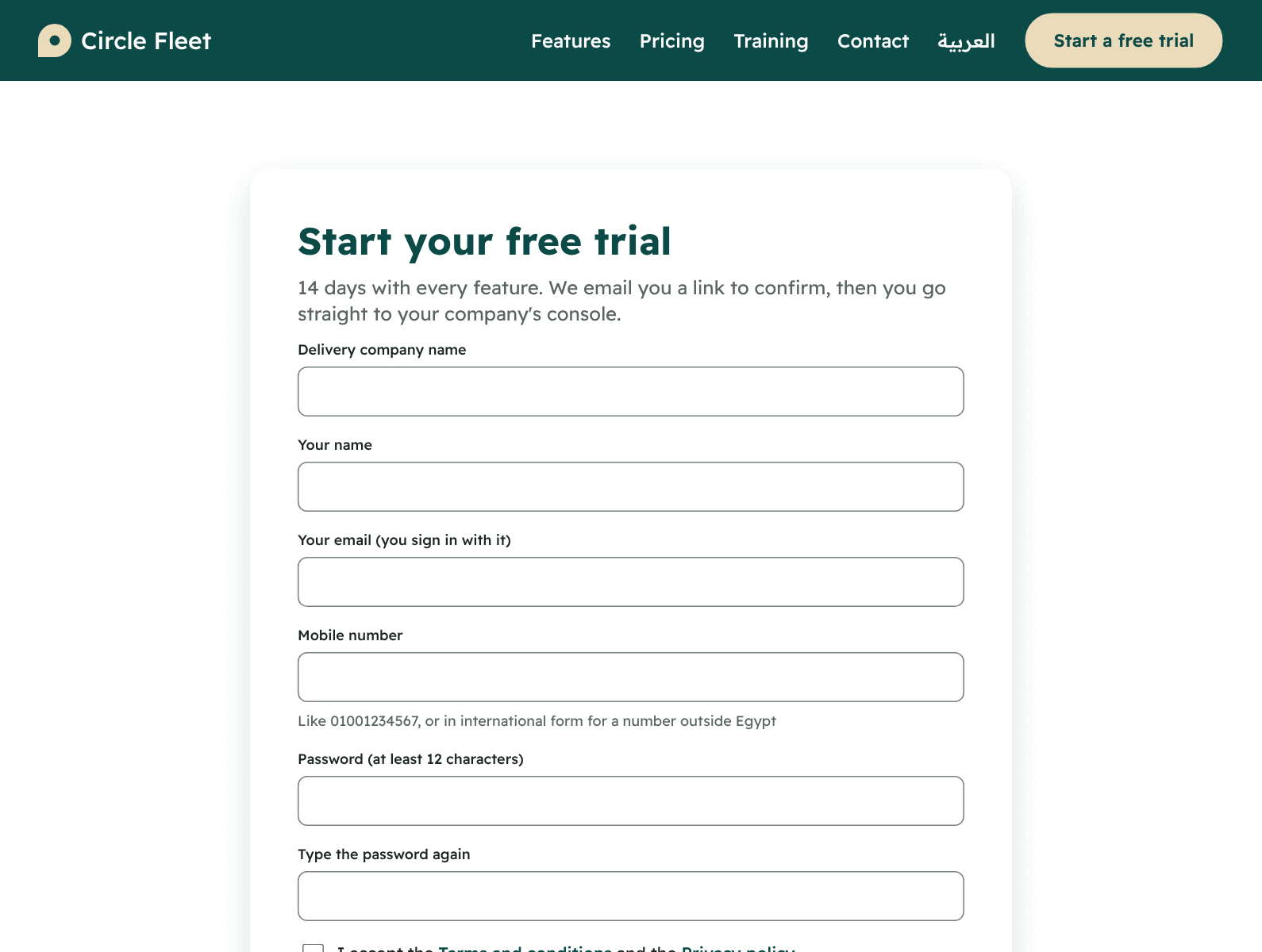
- Open the Circle Fleet website and press “Start a free trial”.
- Fill in the form:
- Delivery company name
- Your name
- Your email (you sign in with it)
- Mobile number
- The password, then type it again
- Tick “I accept the Terms and conditions and the Privacy policy”. Read them first: they are written for the companies that use the system.
- Press “Create the account”.
- The page “Check your email” shows. Open your mail and find the message with the confirmation link. The link works for 24 hours. If you cannot find it, look in your spam folder.
- Open the link, then press the button “Confirm and start the trial”.
- “Welcome to Circle Fleet” shows with the day your trial ends. Press “Sign in to the console” and sign in with your email and password.
If something goes wrong
| What you see | What to do |
|---|---|
| “The two passwords do not match.” | Type the password again the same way. Your other details stay filled in |
| “You need to accept the terms and the privacy policy.” | Tick the acceptance |
| “This link does not work” | It was used already or is over 24 hours old. Sign up again, or sign in if your account was made |
| “Sign-up is not available yet” | Contact Circle from the “Contact us” page and your account will be made |
| “Too many attempts” | Wait a little, then try again |
Signing in afterwards
- Open the company console (from the “Sign in” button on the website).
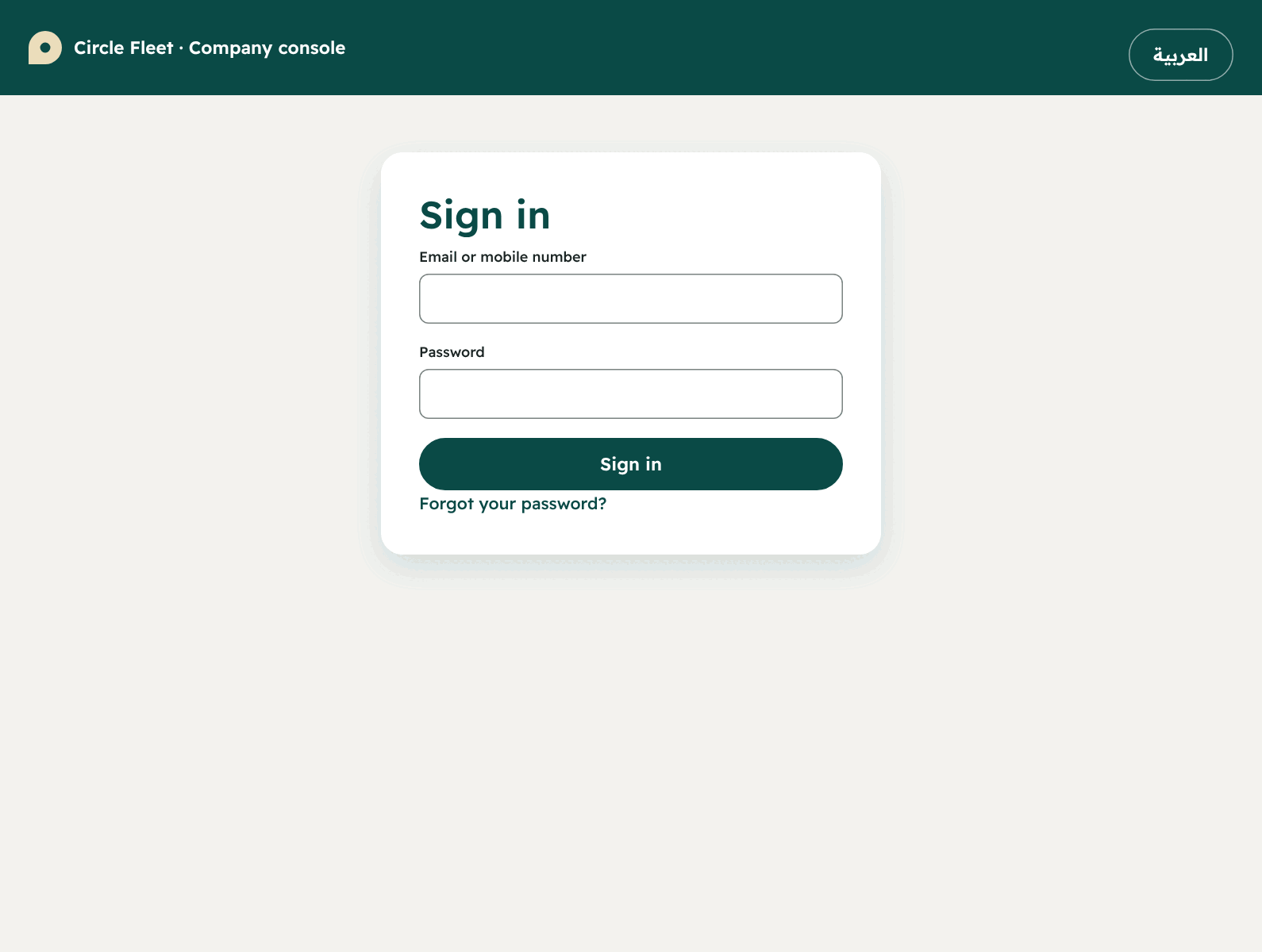
- Type your email or mobile number and your password, and press “Sign in”.
- If your account is in more than one company, a list “Choose the company” shows: choose, then press “Sign in”.
- If you turned on two-step sign-in, you are asked for a 6-digit code from the authenticator app on your phone.
A look at the company console
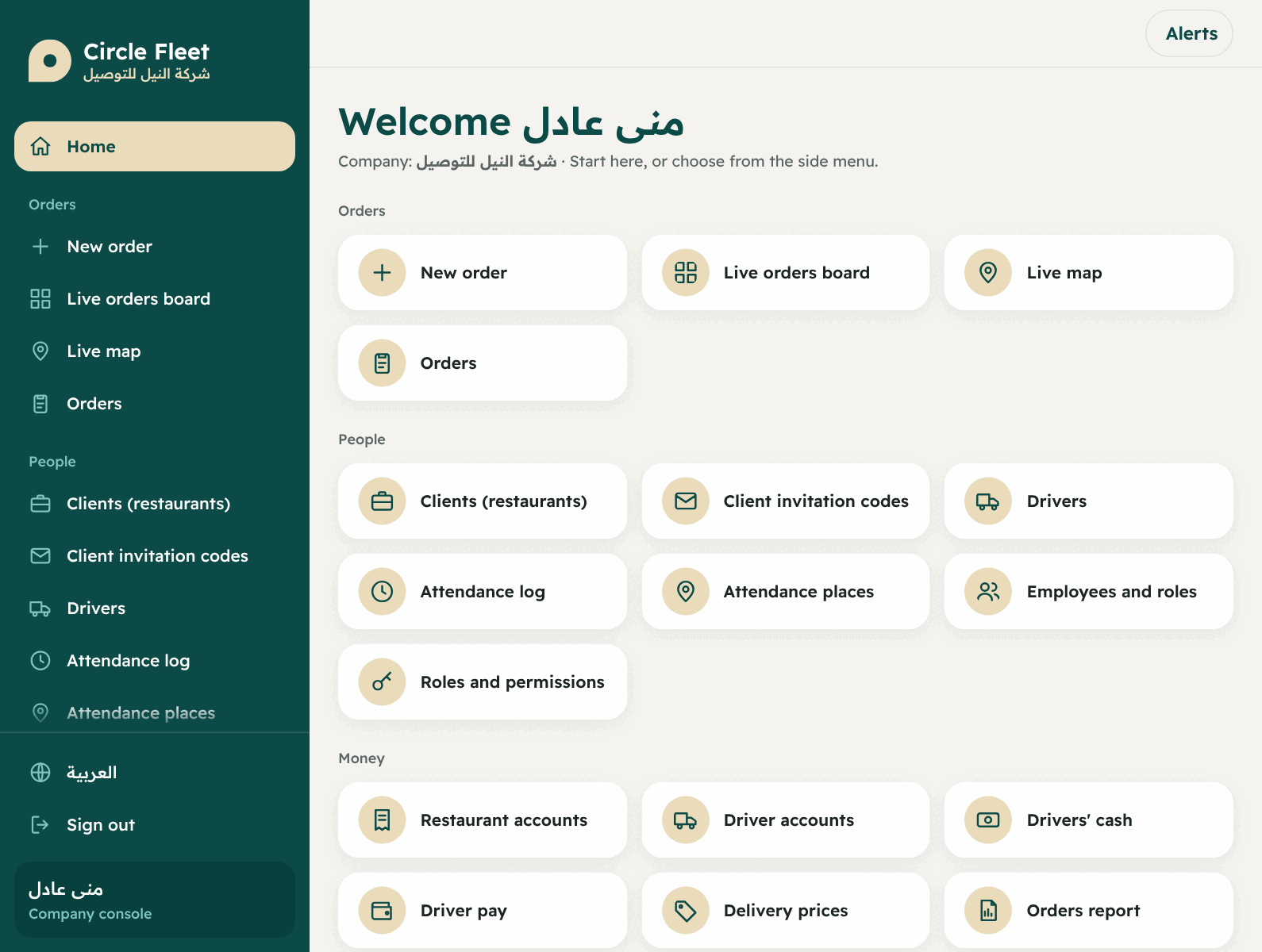
The first page has shortcuts, and the side menu has four groups:
| Group | You will find in it |
|---|---|
| Orders | New order, Live orders board, Live map, Orders |
| People | Clients (restaurants), Client invitation codes, Drivers, Attendance log, Attendance places, Employees and roles, Roles and permissions |
| Money | Restaurant accounts, Driver accounts, Driver cash, Driver pay, Delivery prices, Orders report, Subscription and payments |
| Company | Settings, Circle support access, Change log, Support from Circle |
Protecting your account
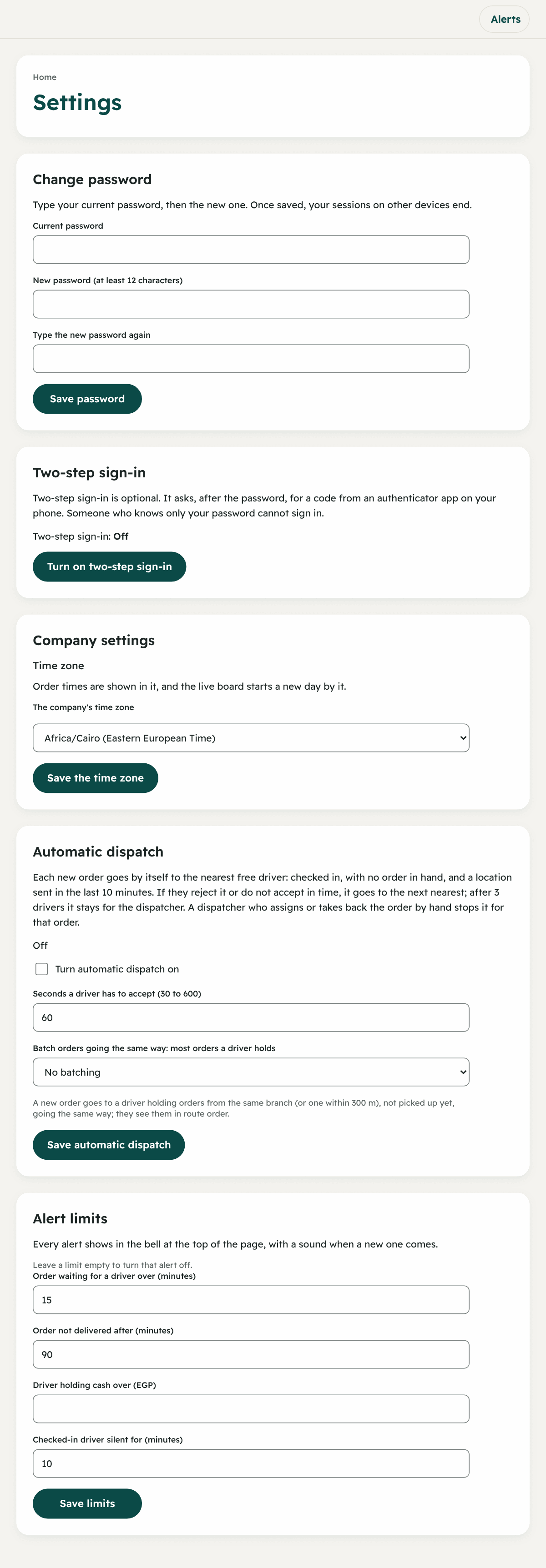
- Changing your password: “Settings” → “Change password”. Type the current one, then the new one. When saved, your other devices are signed out.
- Two-step sign-in (optional, and recommended for the owner): “Settings” → “Two-step sign-in” → “Turn on two-step sign-in”.
- Install an authenticator app on your phone.
- Scan the QR code shown, or type the key by hand.
- Type the 6-digit code and your password, and press “Confirm and turn on”.
- The recovery codes show: keep them somewhere safe. Each works once if you lose your phone. They never show again.