Signing up and signing in
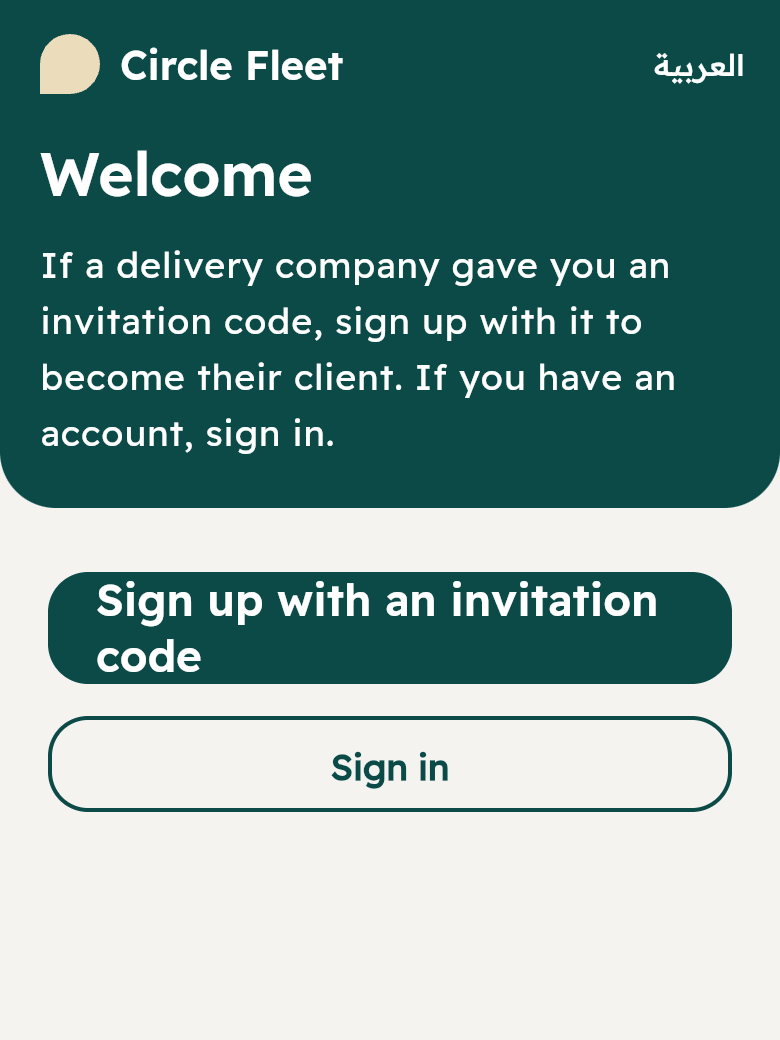
- New, with an invitation code from you: “Sign up with an invitation code” (unit 7). They stay “Waiting for approval” until you accept them.
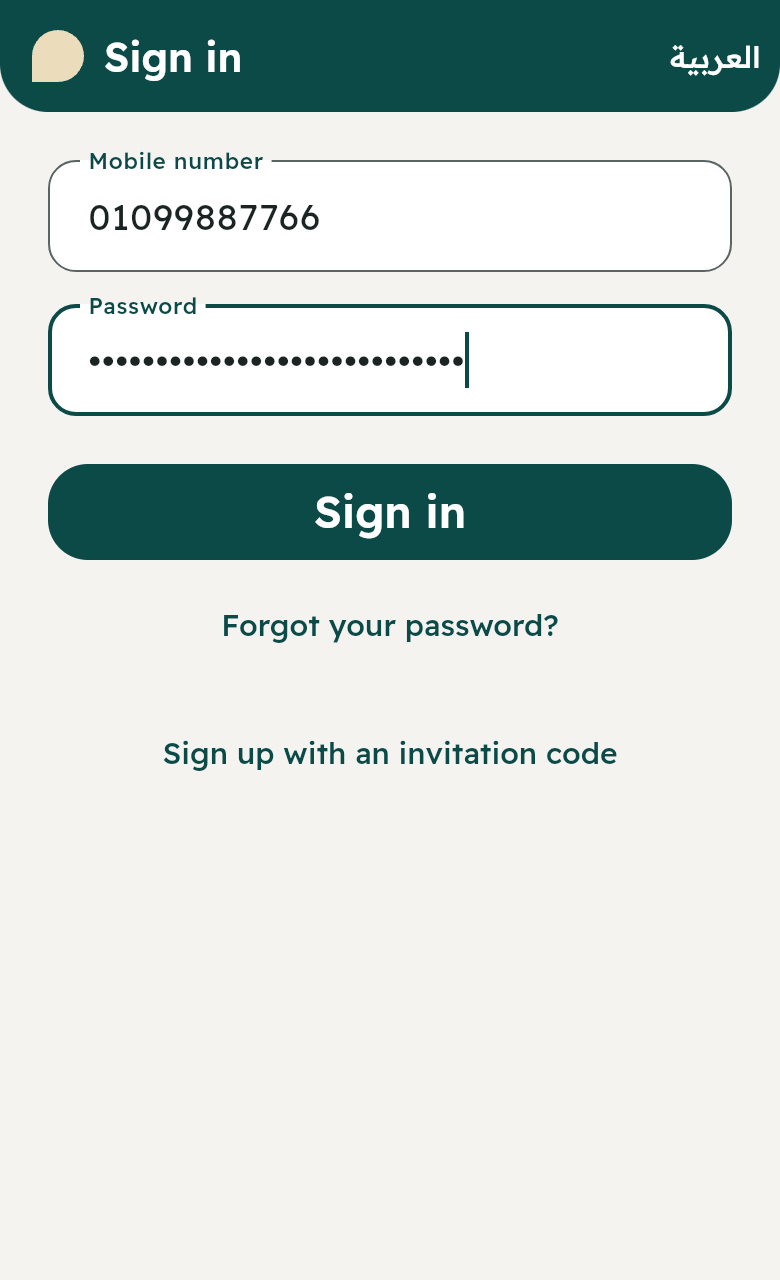
- Has an account: “Sign in” with a mobile number and password. If they are a client of more than one company they choose the company.
- The first sign-in with a temporary password (which you gave them): they choose a new one.
- Forgot the password? A code reaches their email if one is registered, otherwise they ask you for a new one.
Sending a delivery request
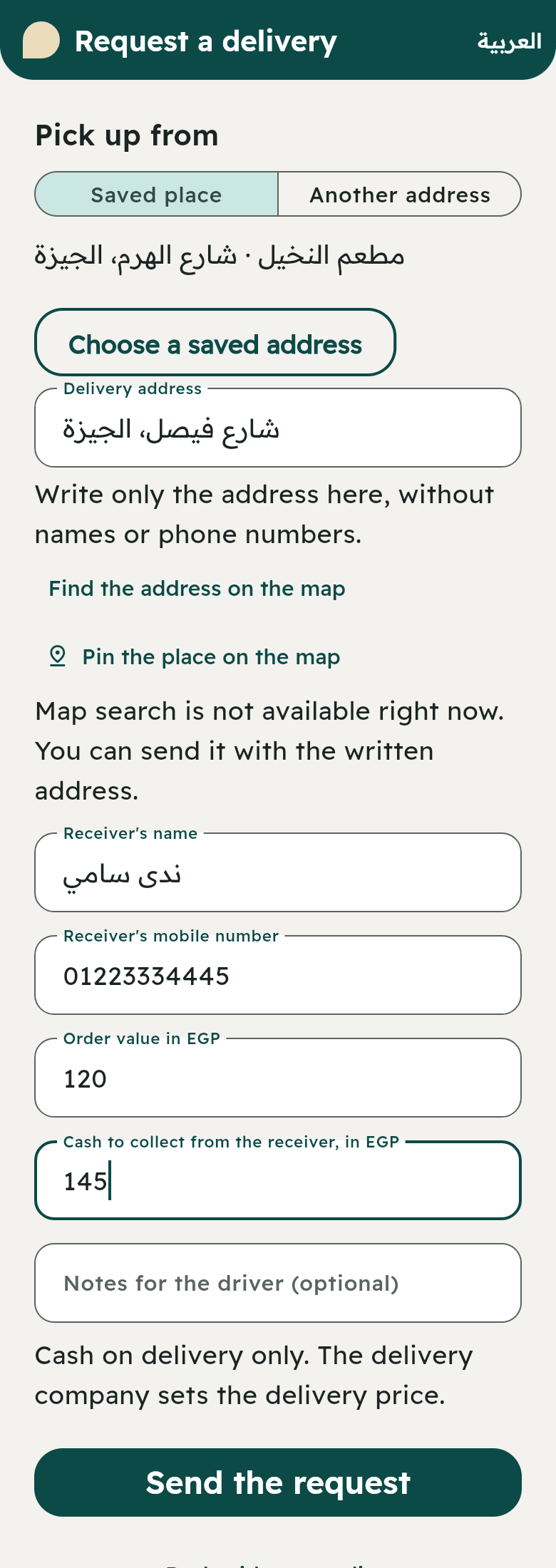
From the home page “Request a delivery”:
- Pick up from: “Saved place” (their branch registered with you) or “Another address” for this time.
- Delivery address: they type the address only (without names or numbers), then “Find the address on the map” and choose the right one from the suggestions, or “Pin the place on the map”.
- Receiver’s name and Receiver’s mobile number.
- Order value in EGP, and Cash to collect from the receiver, in EGP (they type 0 if it is already paid).
- Area (usually “From the address”) and Notes for the driver.
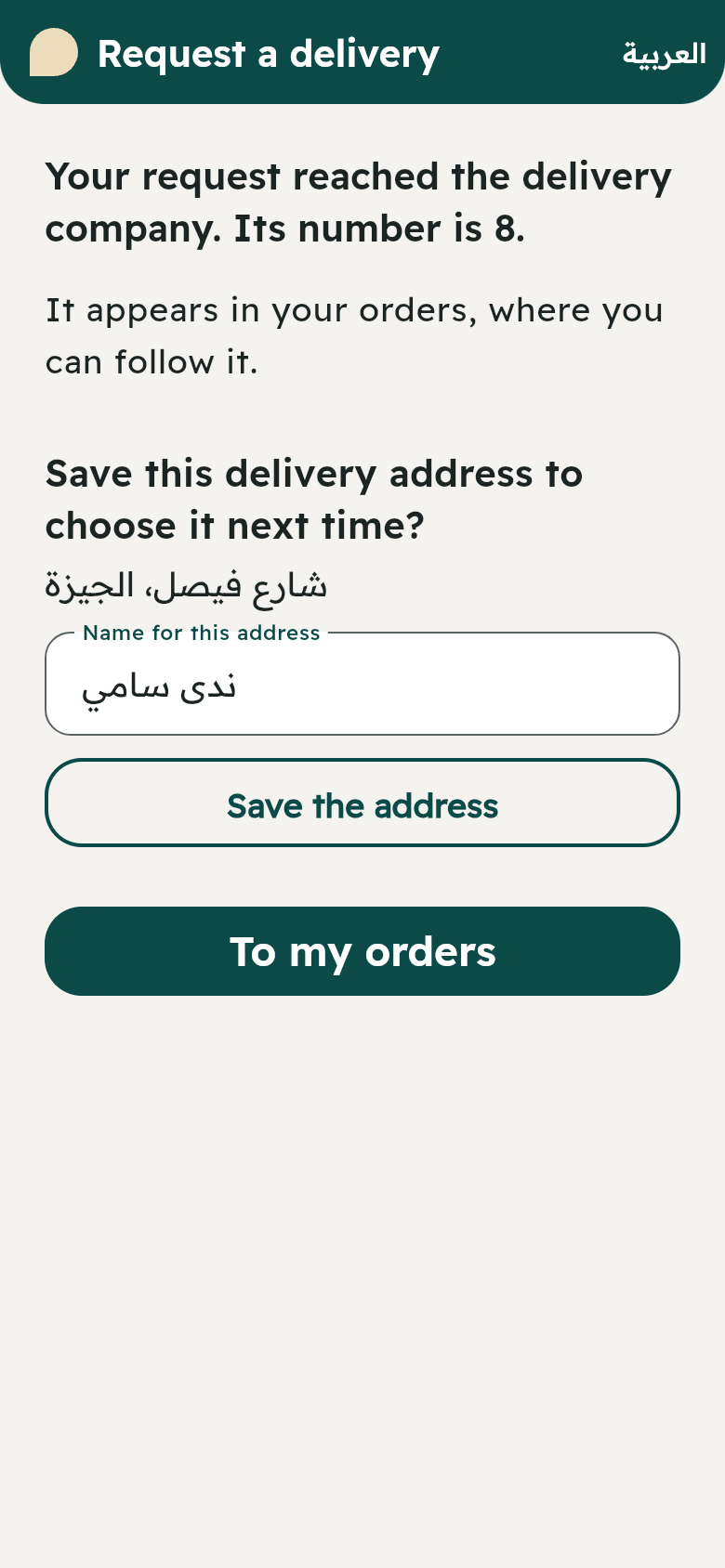
- “Send the request”. They see: “Your request reached the delivery company. Its number is …”.
Why might the app refuse the order?
| The message | The cause | What you do |
|---|---|---|
| Your account is not active with the delivery company right now | The client is suspended | Reactivate them from their page |
| The delivery company has not set delivery prices yet | There is no price | Set a price (unit 8) |
| The delivery company is not taking new orders now | Your trial ended, or the balance is not enough, or an invoice is unpaid | See unit 4 |
| No internet connection. Send it again unchanged | The connection dropped | They press send again, and it will not be sent twice |
Following orders
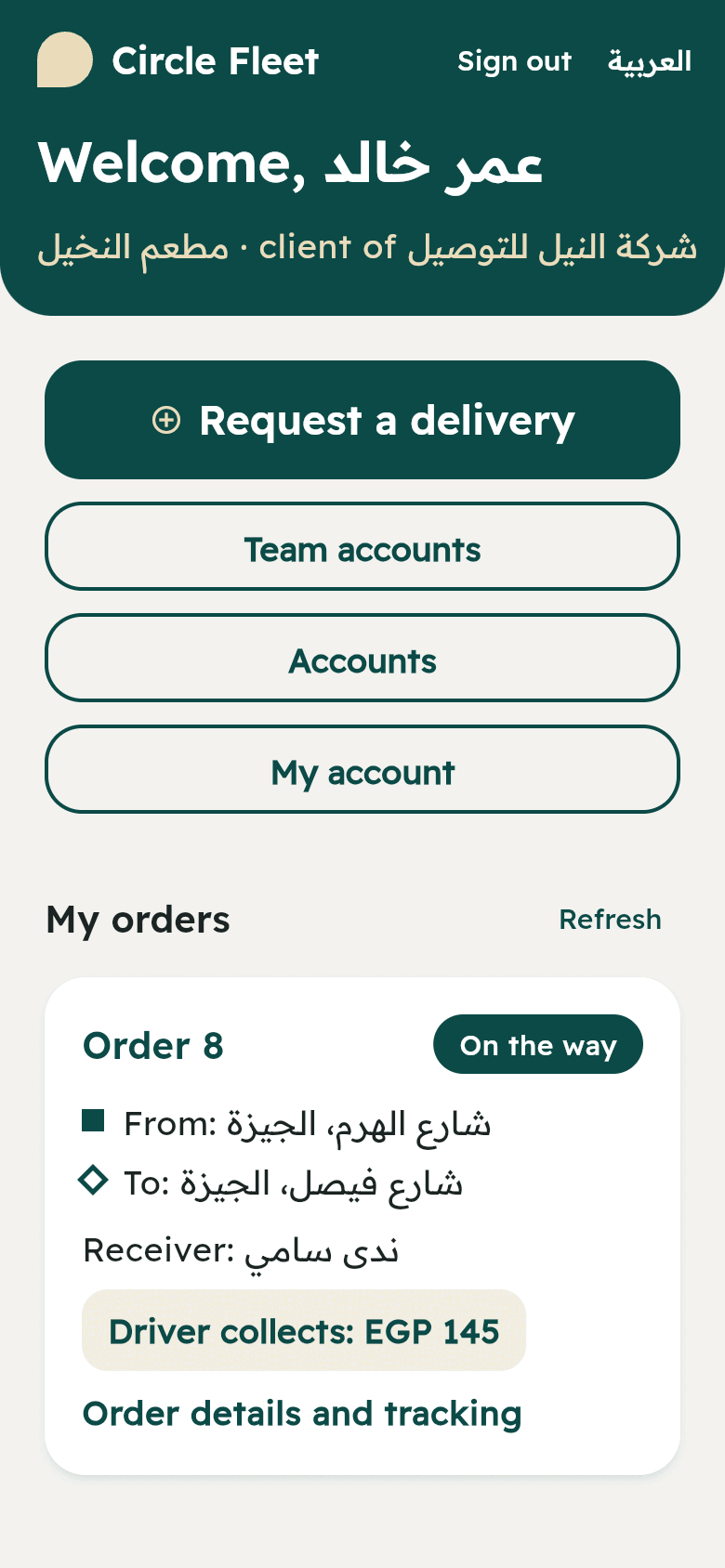
- “My orders”: every order with its state: Waiting for a driver, Driver assigned, Accepted by the driver, On the way, Delivered, Not delivered, Cancelled.
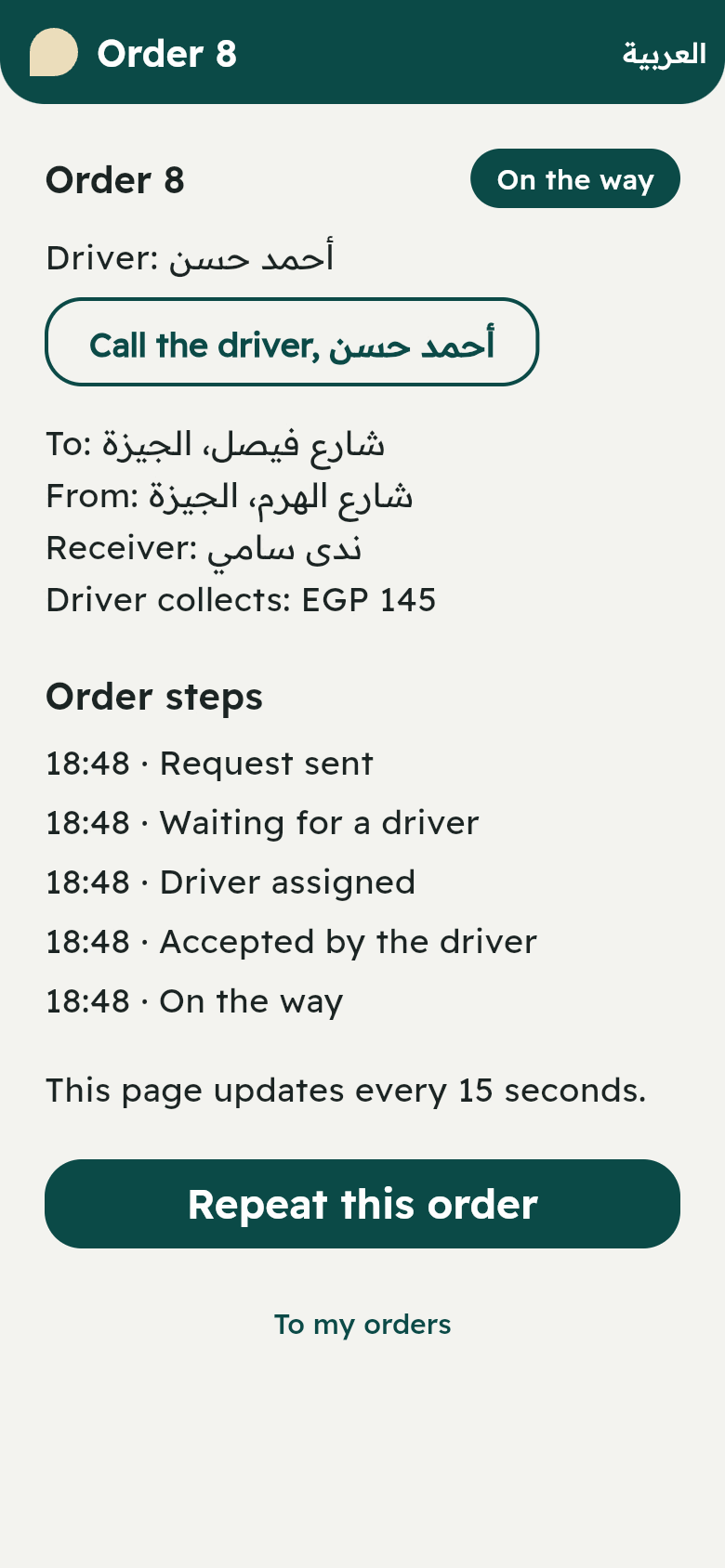
- “Order details and tracking”: Order steps, a map with the pickup, drop-off and driver, and “Driver’s last position at …”. The page updates every 15 seconds.
- “Call the driver …”: they call the driver directly.
- “Cancel the order”: available only before a driver takes it. After that they call you. They may write an optional reason.
- “Repeat this order”: asks again with the same details and point.
Saved addresses
After sending an order the app asks “Save this delivery address to choose it next time?”. They type a name for the address (like the customer’s name and area) → “Save the address”. In the next order “Choose a saved address” fills in the details and the point by itself. There is a limit, and they can delete what they do not need.
On a computer’s screen
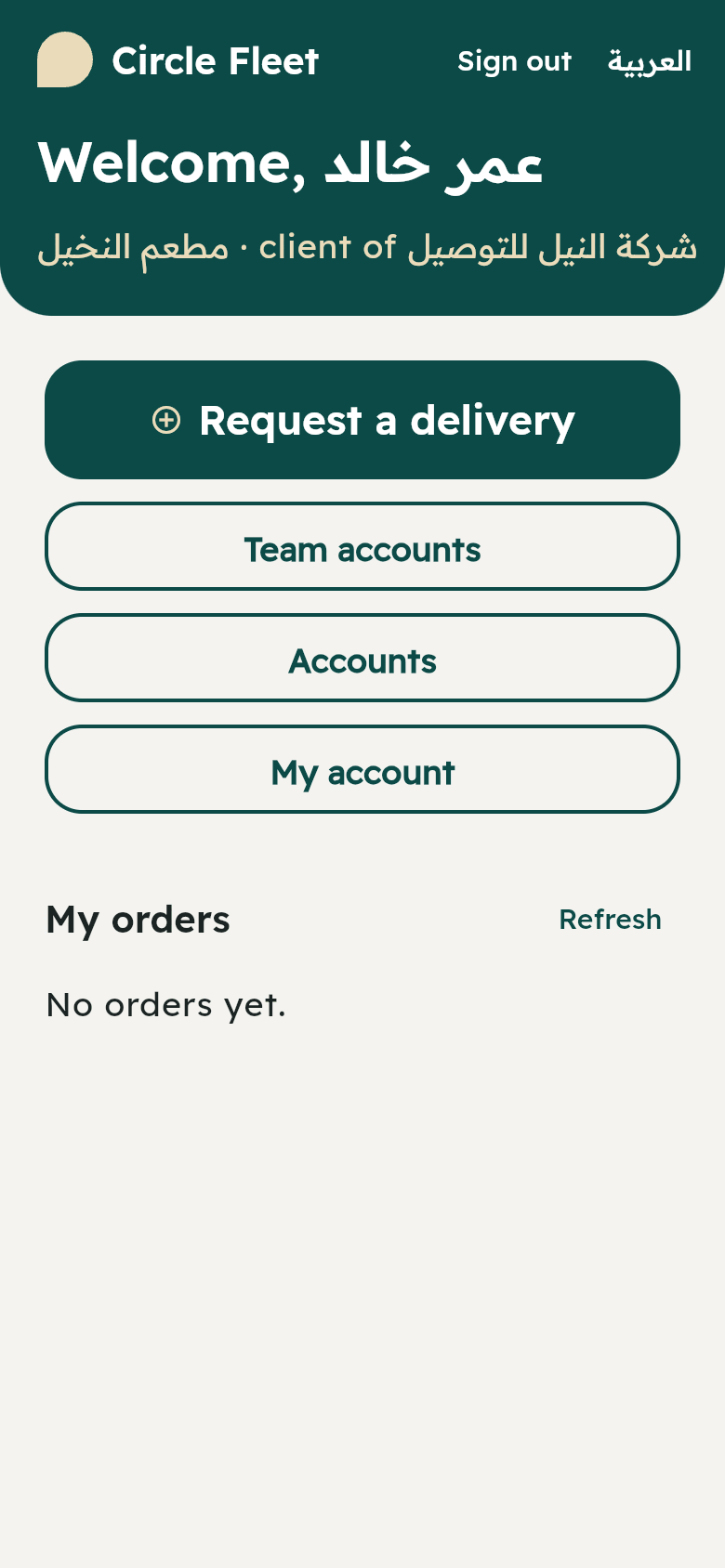
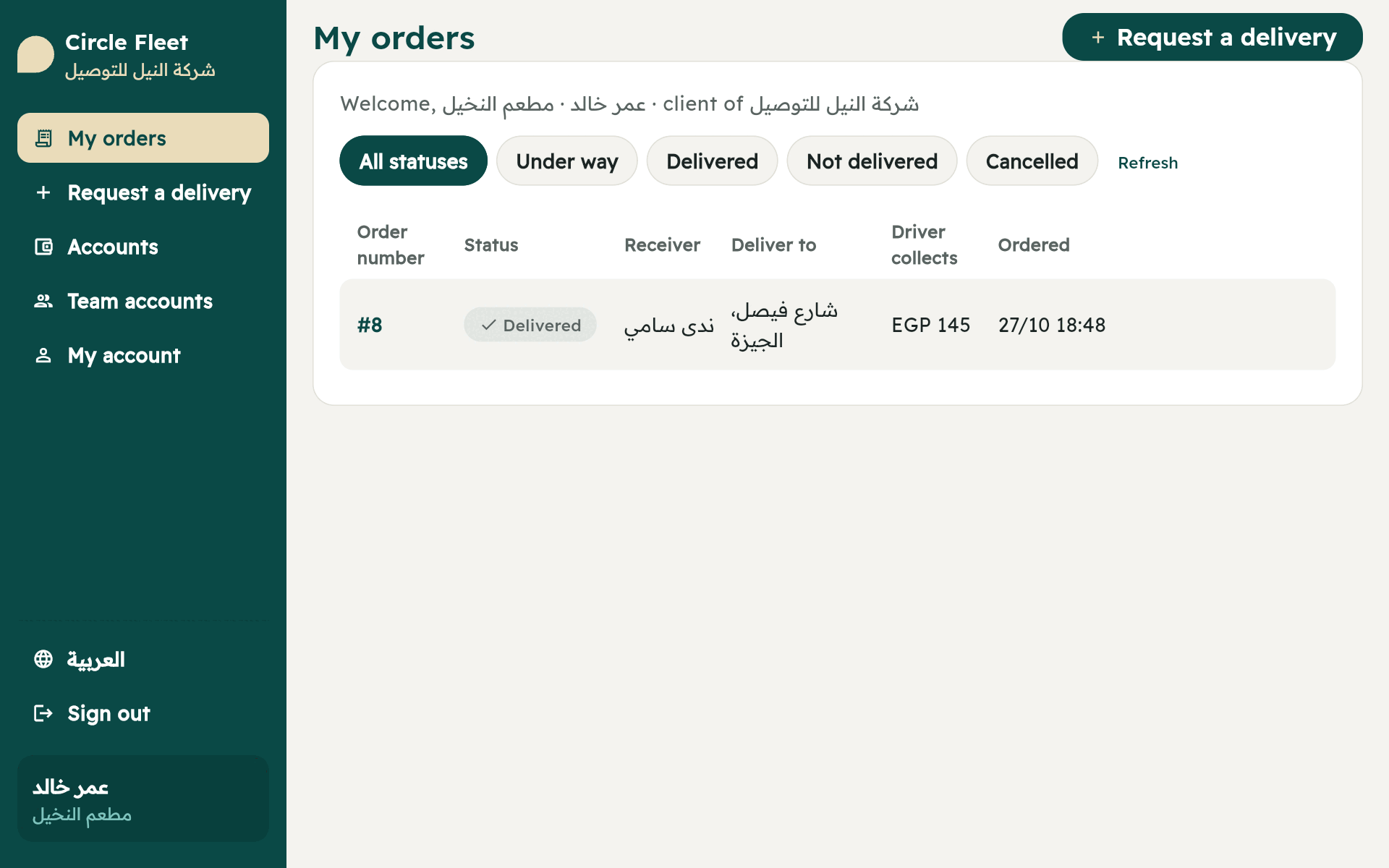
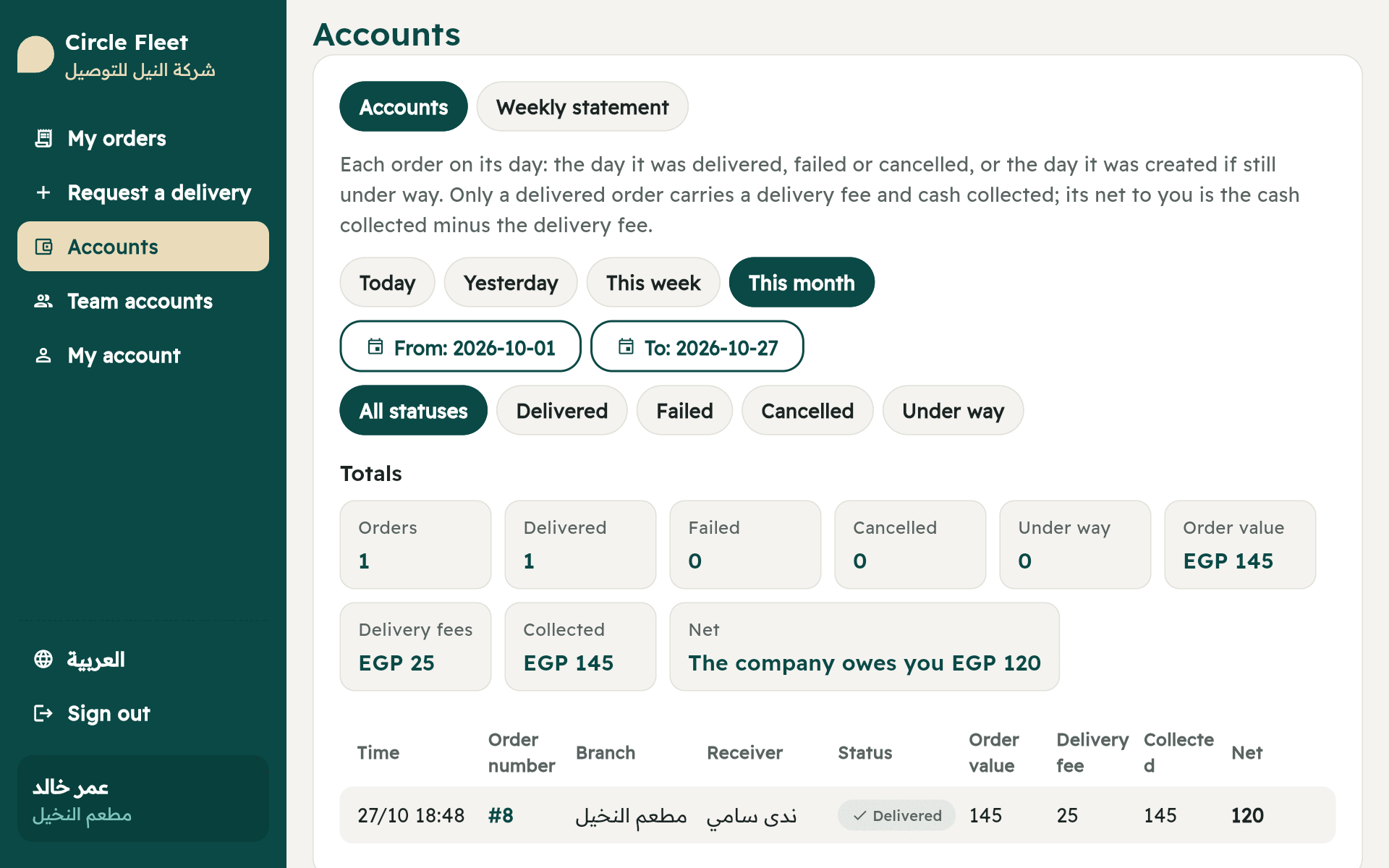
When a client opens the ordering website on a computer (1000 pixels wide or more) the app looks like the company console: a side menu of its pages, and each page on a white card. “My orders” is a table with state filters and the “Request a delivery” button beside the title. On a phone it stays as you saw it.
Accounts and the statement
“Accounts” (a button on the home page on a phone, and in the side menu on a computer) is for the restaurant’s owner or accountant. It shows any range they choose:
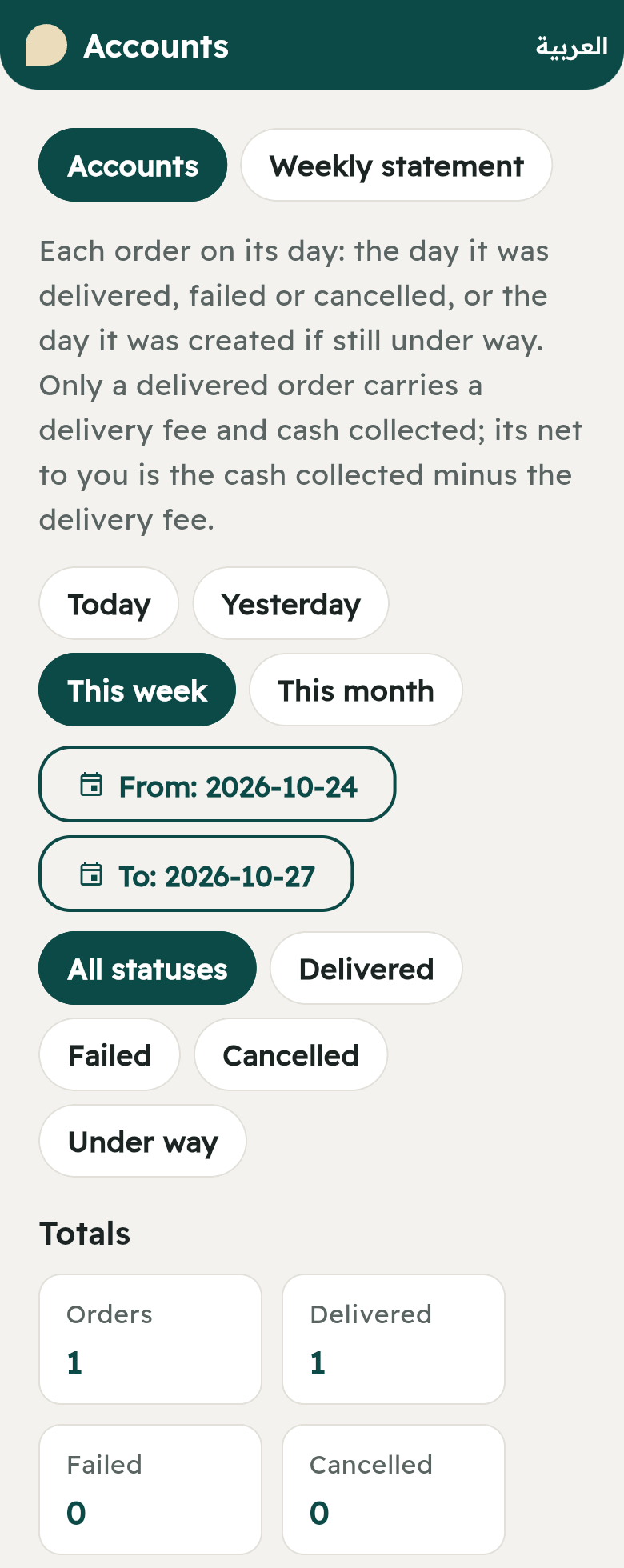
- Quick ranges: “Today”, “Yesterday”, “This week”, “This month”. Or choose “From” and “To” on the calendar (up to 93 days).
- State filters: “All statuses”, “Delivered”, “Failed”, “Cancelled”, “Under way”.
- The totals in tiles: the number of orders, how many were delivered, failed, cancelled and under way, the order value, the delivery fees, the collected cash, and “Net” (written “The company owes you …”).
- Each order on its day with its value, delivery fee, collected cash and net: a table on a computer, a card for each order on a phone.
The weekly statement
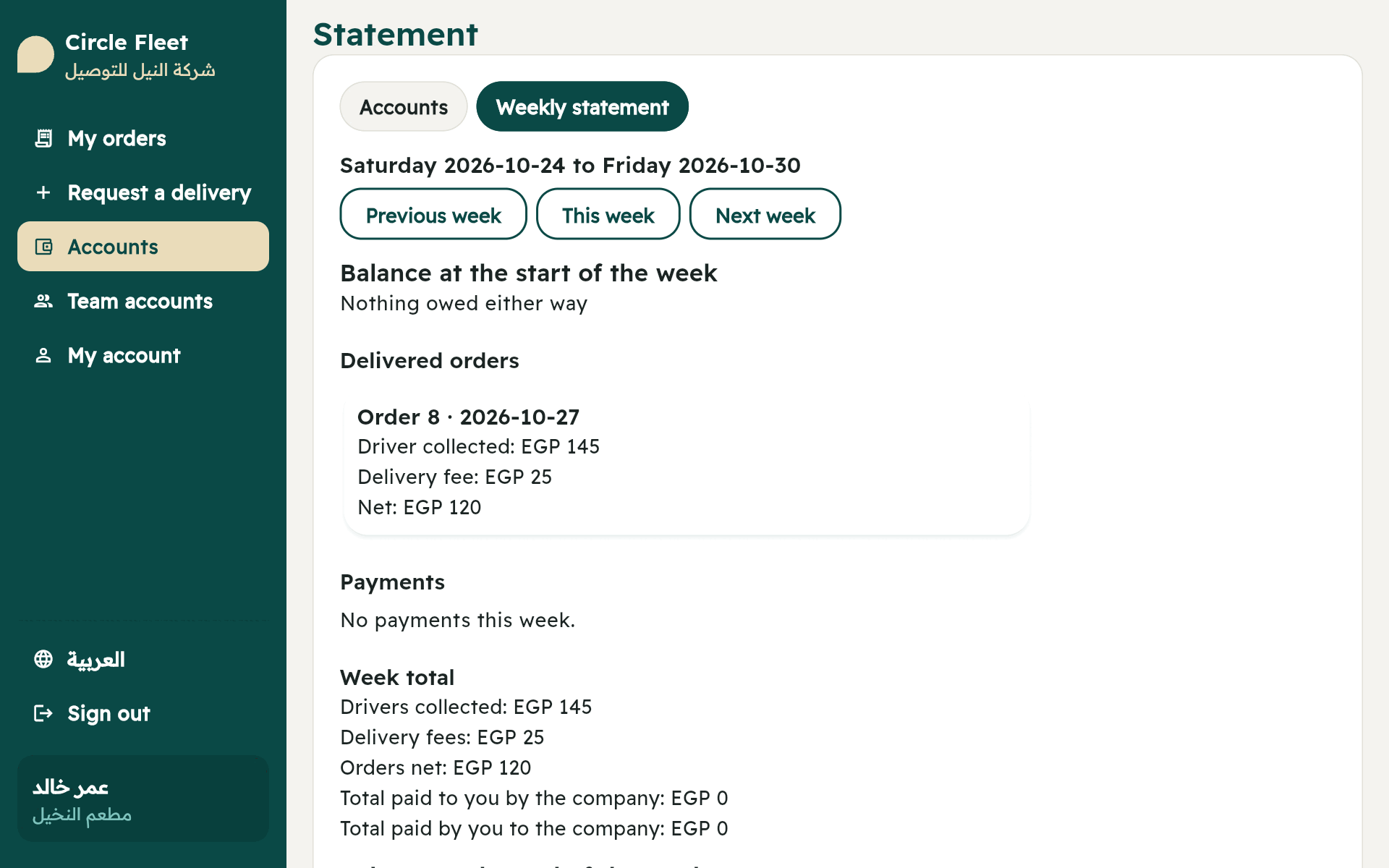
Beside “Accounts” there is the tab “Weekly statement”: a week from Saturday to Friday:
- “Balance at the start of the week” and “Balance at the end of the week”, written clearly: “The company owes you EGP …”, “You owe the company EGP …” or “Nothing owed either way”.
- “Delivered orders”: what the driver collected, the delivery fee and the net, and “Cash differs” if any.
- “Payments”: what the company paid them and what they paid the company, by their way.
- The week’s total, and moving with “Previous week / This week / Next week”.
Team accounts (for the restaurant owner)
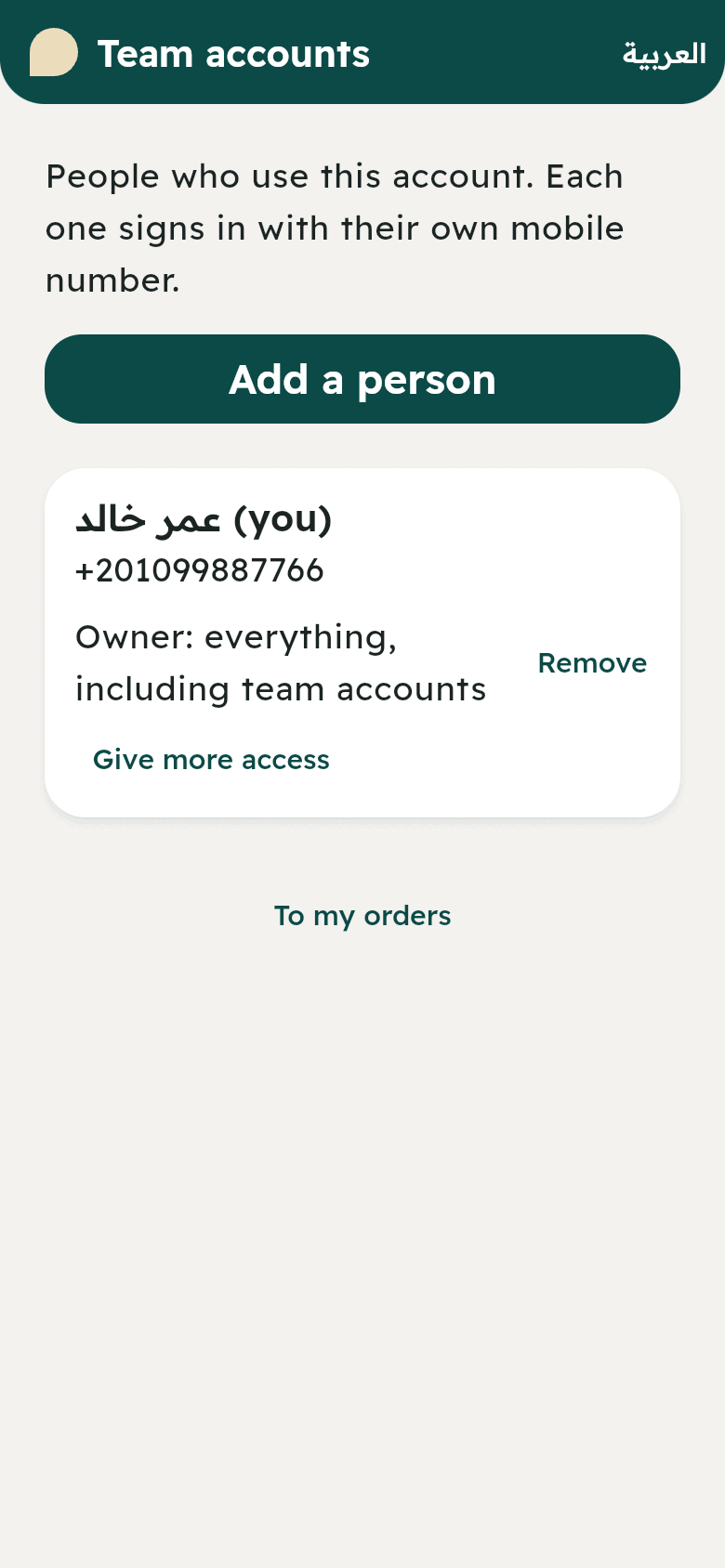
“Team accounts” → “Add a person” (unit 7). Each person has an access: Owner, Deliveries, Accounts.