The orders report
“Orders report” (the “Money” group):
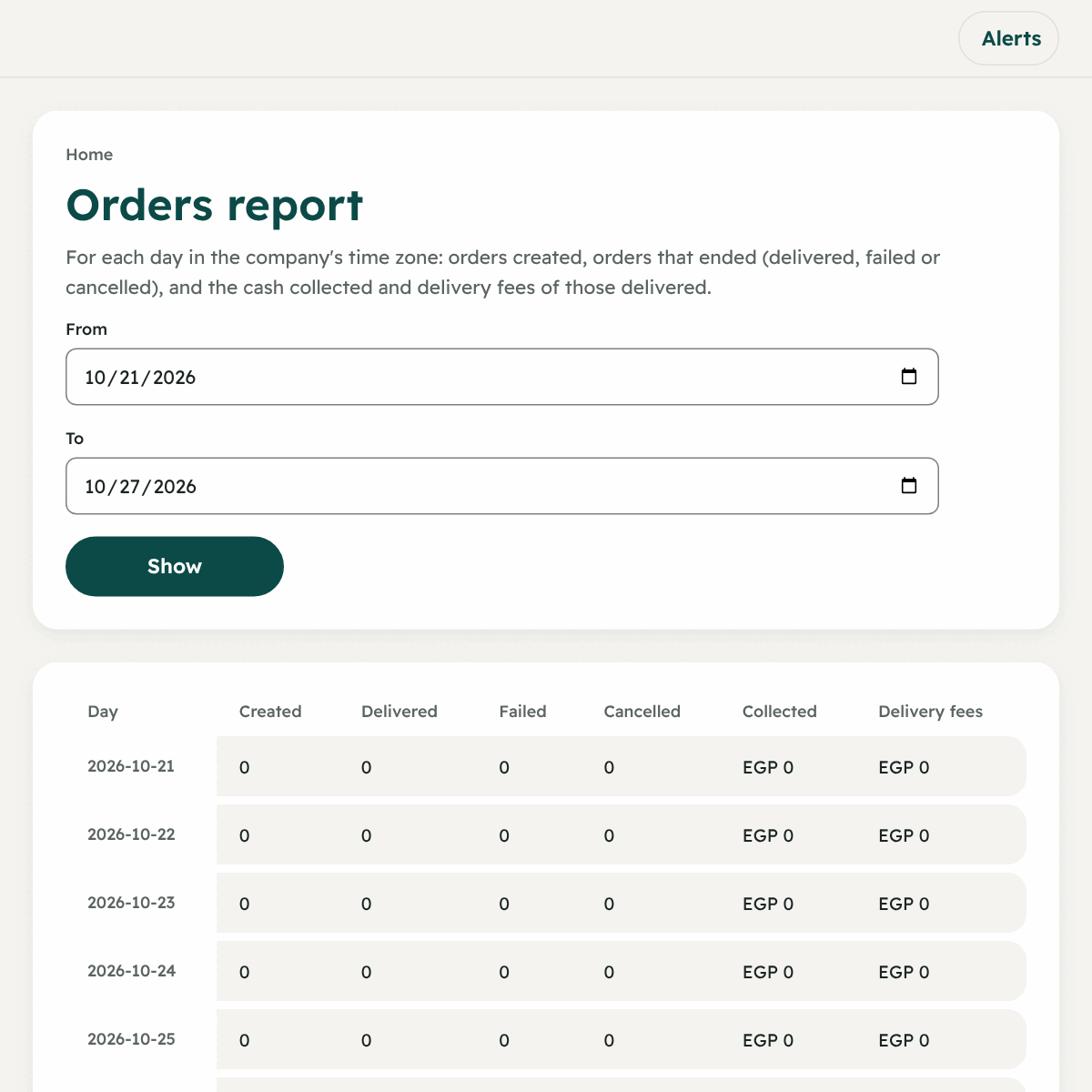
- Choose “From” and “To” (up to 93 days, the first before the second).
- Press “Show”.
- For each day in your company’s time zone: the orders that were created, delivered, failed and cancelled, “Collected” and “Delivery fees” for delivered orders, and at the end “Total”.
- “Download the orders as an Excel file”: a line for each order. If the orders are too many for one file, choose fewer days.
All the other reports
| The report | Find it in | Use |
|---|---|---|
| Restaurant accounts | Money | Every order and every restaurant, balances and weekly statements |
| Driver accounts | Money | Each driver’s performance, cash and pay |
| Attendance log | People | When and where each driver checked in |
| Driver cash | Money | What each driver holds |
| Payments and invoices | Subscription and payments | What you paid Circle |
Printing, saving PDF and exporting
- Excel: the button “Download as an Excel file” in reports. Every download is recorded in the change log under the name of whoever downloaded it.
- PDF / print (the feature “PDF reports”): a client’s statement, drivers’ pay and payments, the orders report, and Circle’s invoice. The “Print” button opens a clean page in Arabic or English, and you print it or save it as PDF from the browser.
Alerts
A feature that warns you of a problem. You find it in the bell at the top of every page: a number of alerts, and pressing it opens a list with links to the problem, and a sound when a new alert arrives (it can be turned off).
The kinds of alerts:
| The alert | When it shows |
|---|---|
| Order waiting for a driver | Minutes passed while it is “Waiting for a driver” |
| Order late | Not delivered after a time from its creation |
| Driver holding a lot of cash | Their cash passed a limit you set |
| Driver not sending position | A checked-in driver whose position has not arrived for a while |
Setting the limits
From “Settings” → “Alert limits”: type the minutes (1 to 1440) or the amount for each kind, then “Save limits”. Leave a limit empty to turn that kind of alert off.
The change log
“Change log” (the “Company” group): every important change in your company: who did it, when, and what changed (before and after). Latest first.
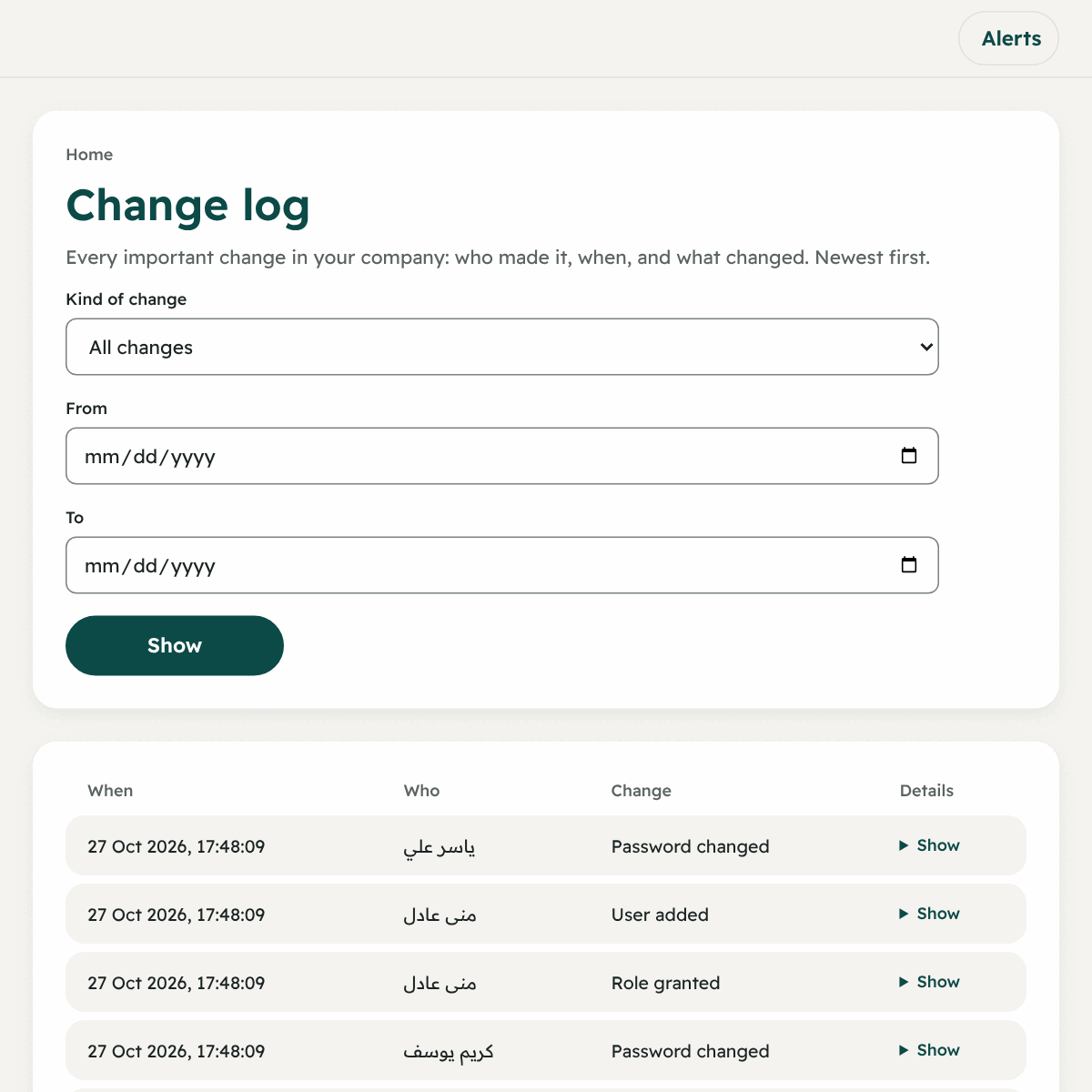
- It records: changes to amounts and prices, roles and permissions, cancelling after pickup, report downloads, agreeing to a tier’s terms, suspending accounts, and more.
- Filters: “Kind of change”, “From” and “To”. Older pages with the button “Older”.
- Money details show only to those with their permission.
- The owner and manager see it only.
- No line can be deleted or edited.